Free Live Lyrics Projection
Setting up free lyrics projection before Sunday: a step-by-step checklist
Switching to new projection software a few days before a service can feel risky. The way to make it safe is to do the setup in order and rehearse once in the room.
This is a checklist for getting Kastr ready for your first Sunday. Most teams can get through it in an evening, plus a short rehearsal.
Step 1: Choose web or Windows
Decide where Kastr will run on Sunday.
Web Kastr runs in a browser, so there's nothing to install. It suits a booth with a steady internet connection, or a church where the computer changes from week to week.
Kastr for Windows is an installer for 64-bit Windows. It runs fully offline and doesn't need an account. Choose it when the connection is unreliable or Kastr will stay on one computer.
You can use both. Plan in the browser during the week, then sign in on the desktop app to sync songs, themes and programs to the booth computer.
Step 2: Create a workspace
A workspace holds everything your team shares. To use web Kastr or sync, click Open Kastr and sign up with your email and a password. Choose Create workspace and give it your church's name.
If someone on your team has already made one, choose Join workspace and enter their invite code, or open the invite link they sent you.
Step 3: Invite the team
Open People in the sidebar. Click Copy link or Copy code and send it to the people who'll prepare or run the lyrics. They join after signing up. Owners and admins can change roles and remove people later.
Do this early so your backup volunteer can see the same library from the first week.
Step 4: Add this Sunday's songs
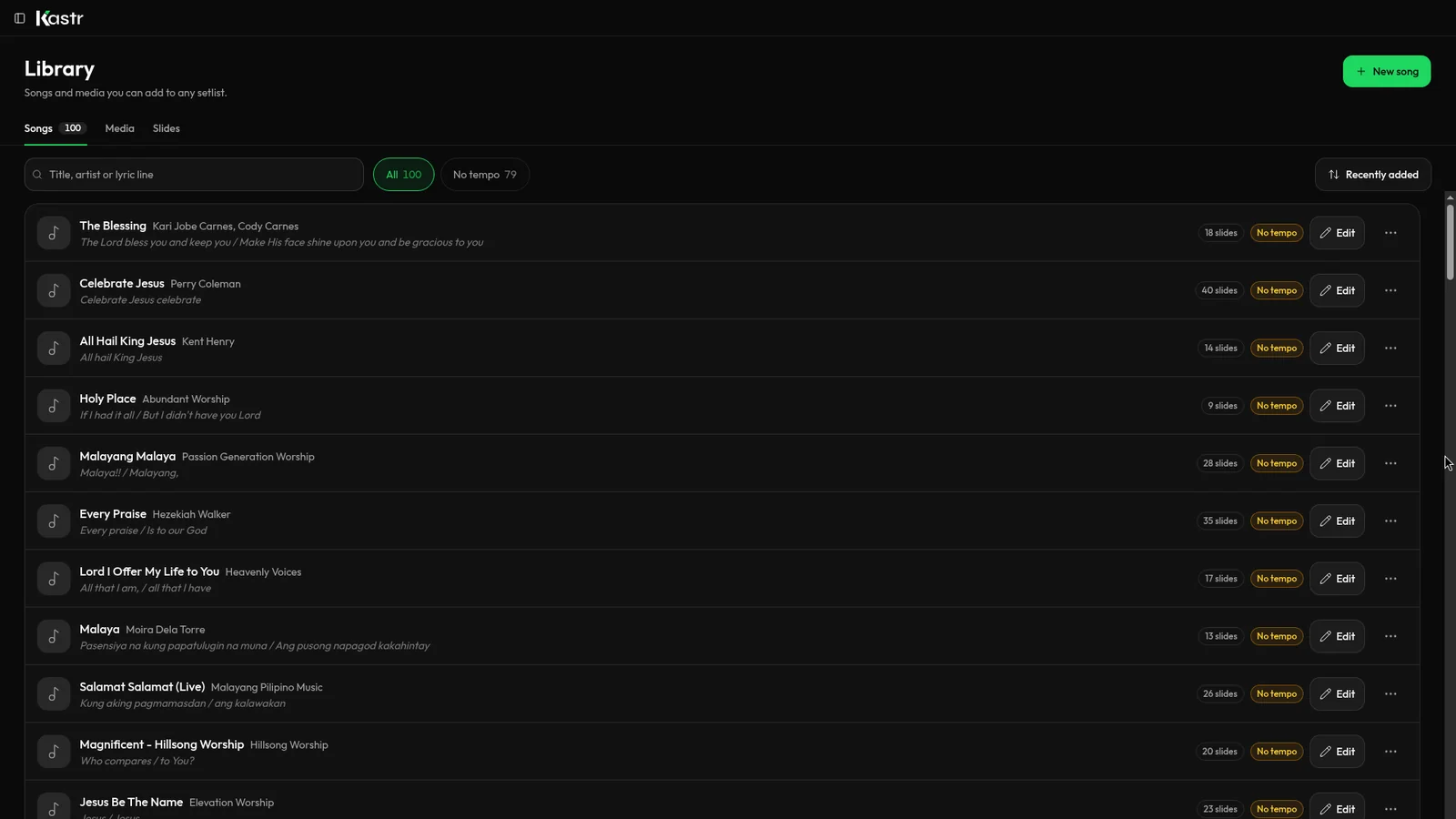
Open Songs and click New song. Type a title or artist and click Search. Pick a match to fill in the title, artist and lyrics, or use the manual entry line and paste the lyrics yourself.
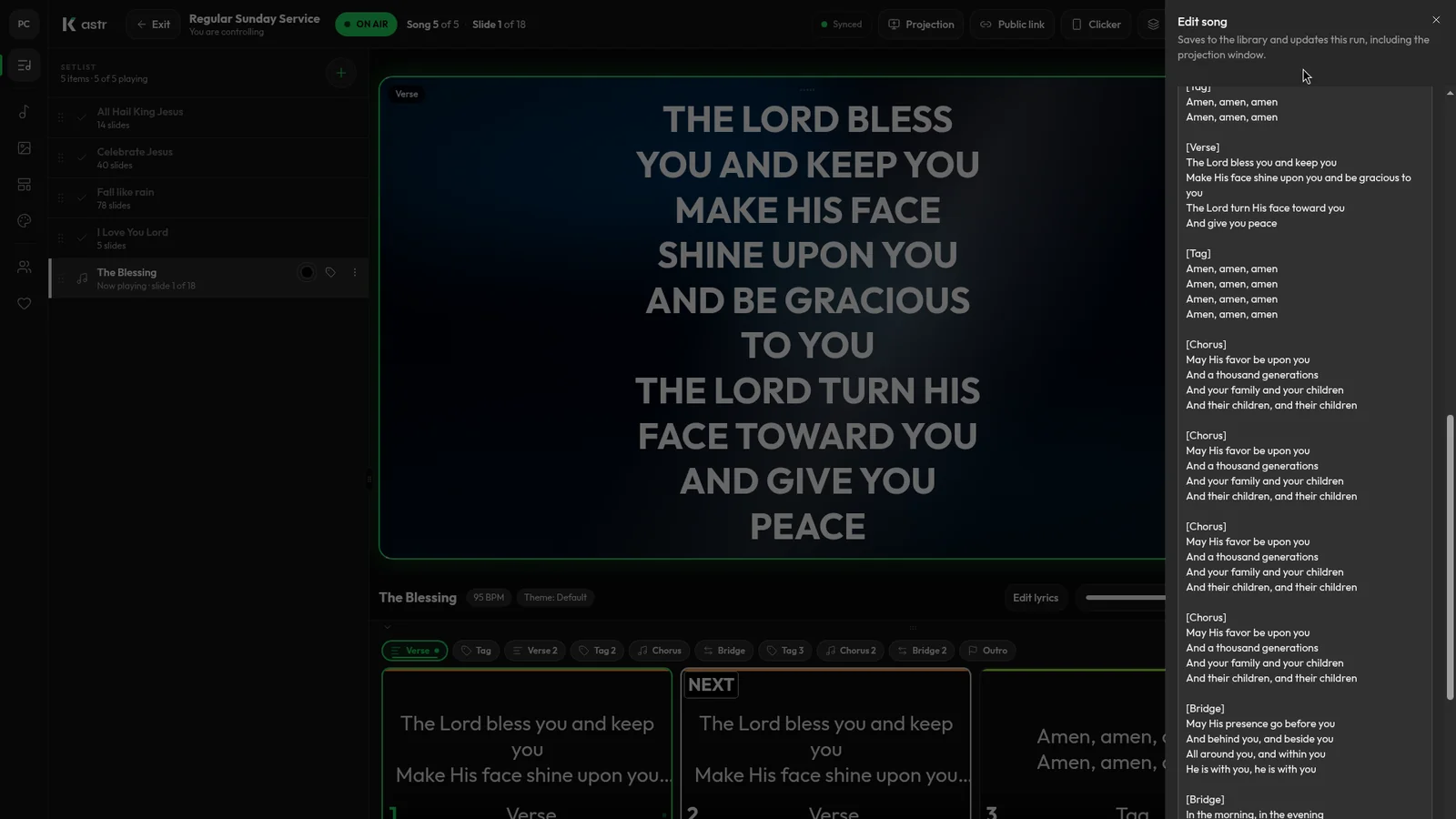
On the lyrics step, check the formatting. Every blank line starts a new slide. A line like Verse 1, Chorus or Bridge labels the section, so you can jump to it during the song. If slides are too long, click Auto slice and pick how many lines go on each slide.
Click Save song. Repeat for each song in the set.
Step 5: Set a theme
Open Themes. Every workspace starts with three: Void, Navy and Mist. Pick one, or adjust the background, font, size, weight and letter case and click Save theme.
Check the text size with the room in mind. People at the back need to read it.
Step 6: Add media and slides
If the service has announcements or a welcome screen, open Slides and click New slides. Pick a starting template such as Welcome or Announcement, then type your text and drop in images.
For photos and videos, open Media and click Add media. Kastr takes JPEG, PNG, WebP and GIF images, and MP4 and WebM video. Videos keep their sound.
Step 7: Build the program
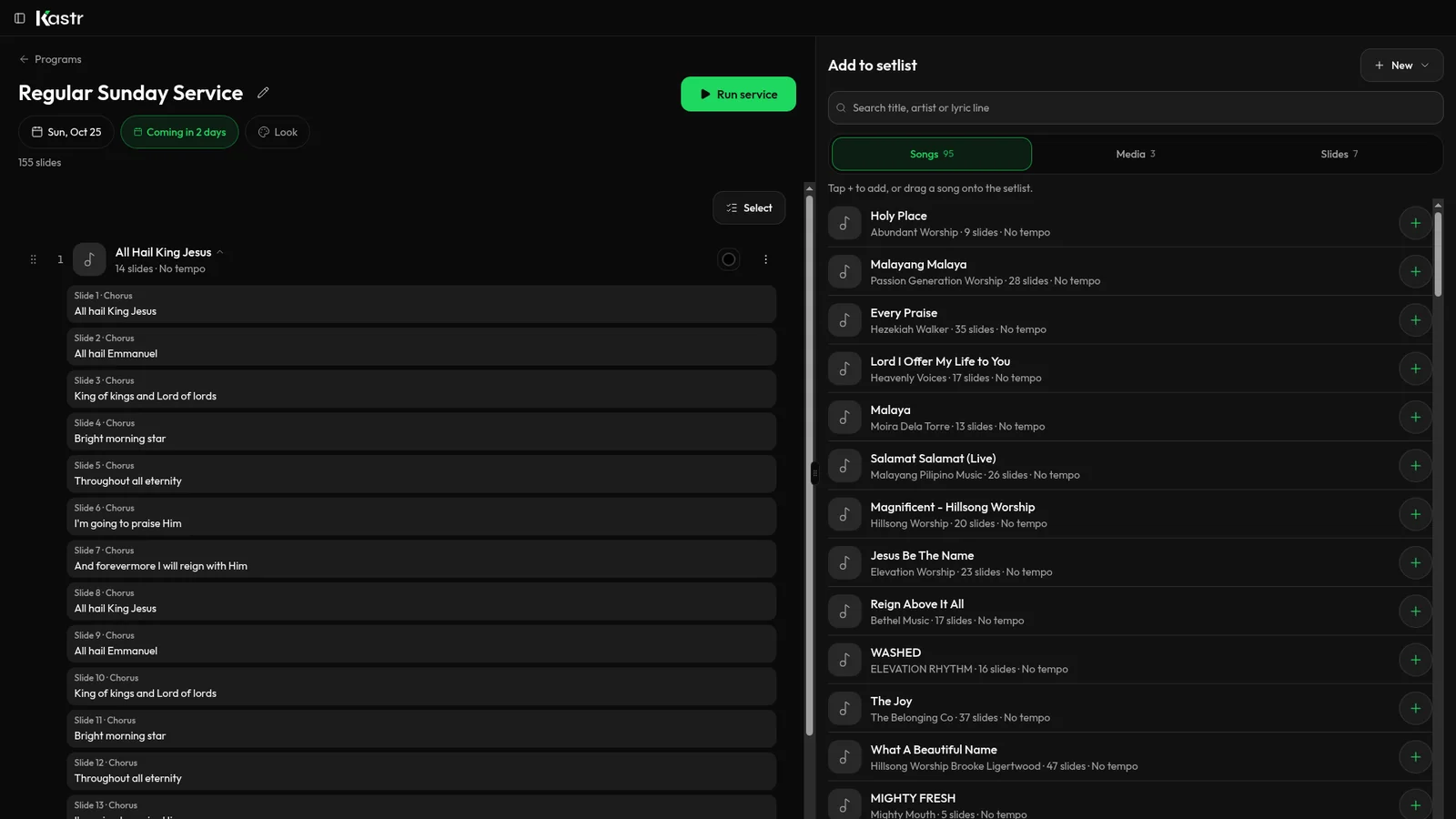
Open Programs, click the plus button, enter a title and a run date, and click Create program. From the library on the right, add the songs and media, or drag them into the setlist. Drag rows to put them in running order.
Add colored tags like Opener or Offering if they help the team read the plan. Set a program theme if you want every song in the set to share one look.
Step 8: Connect the projector
At church, connect the computer to the projector and set the display to extend, not mirror. On Windows, press the Windows key and P together and choose Extend.
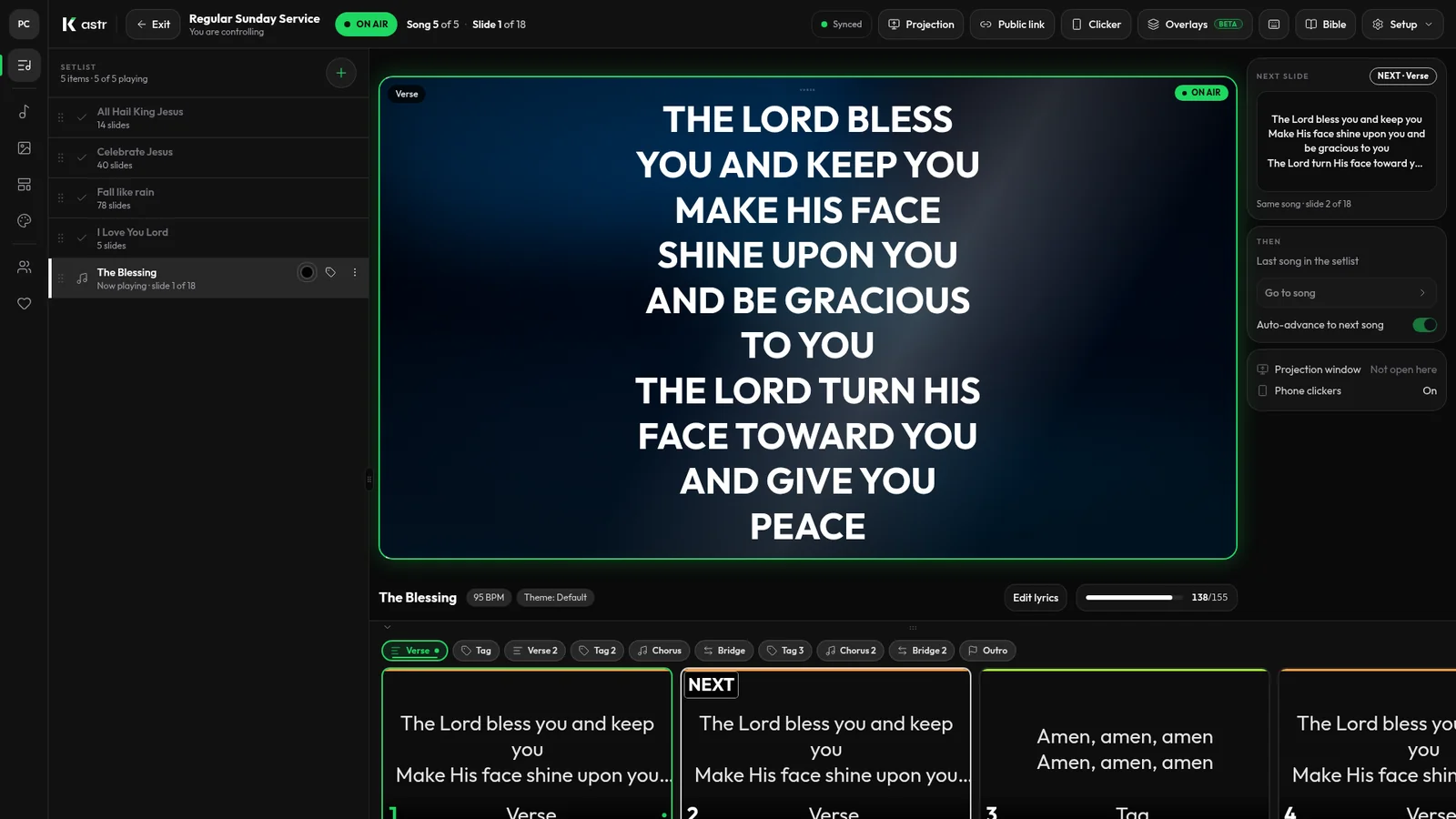
Open the program and click Run service. Press the Projection button in the top bar, drag the new window onto the projector and press F for fullscreen. The room sees only the slides.
Step 9: Set up other screens and a clicker
If you have lobby TVs, phones or a stream computer that should show the lyrics, press Public link and open that link on them. They follow the live slide without signing in.
If someone on stage will advance slides, press Clicker and have them scan the QR code with their phone.
Step 10: Rehearse the whole service
Run the program from start to finish with the person who'll be at the desk on Sunday. Use the arrow keys to move through slides, press B to black out the screens and B again to restore them, and jump between sections from the setlist.
Check that the text is readable from the back row, that videos play with sound, and that the clicker works from where the worship leader stands. If you're using the Windows app offline, rehearse with the Wi-Fi turned off.
After the first Sunday
From the second week on, setup is much shorter. Your songs are already in the library. Duplicate last week's program, swap the songs that changed, and you're ready.
Start your setup
Kastr is free, with every feature available on the web and on Windows. Download Kastr for Windows or open it in your browser and work through this list before Sunday.
Need offline projection on Sunday?
Kastr for Windows runs fully offline on the booth computer. Download the installer once when you have a connection, then run your program without signing in.
More from the blog
Free lyrics software for church: what free should actually include
Plenty of church lyrics tools call themselves free. Here's how to tell a real free tool from a trial, and what Kastr gives you at no cost.
Running church lyrics with one volunteer
In a small church, one person often runs the screens, and sometimes the sound too. Here's how to set up lyrics projection so a single volunteer can handle it.
How to format song lyrics into slides that are easy to read
Readable lyric slides come down to how you format the text before it hits the screen. Here's how to prepare lyrics so Kastr builds clean slides every time.