Free Live Lyrics Projection
Running church lyrics with one volunteer
In a small church, the media team is often one person. They set up the projector, run the lyrics, put up the announcements and sometimes handle the sound board in between. If they're sick, someone else has to figure it all out on Sunday morning.
Lyrics projection for a team of one needs to be simple to prepare and hard to get wrong during the service. This post covers how to set that up with Kastr.
Do the work before Sunday
The single biggest help for a lone volunteer is having the program finished before the service. Anything left until Sunday morning competes with setting up chairs, testing microphones and greeting people.
Ask the worship leader for the song list early in the week. In Kastr, add any new songs to the library. You can search by title or artist to fill in the lyrics, or paste them in yourself. Every blank line becomes a new slide, and lines like Verse 1 or Chorus become section labels.
Then build the program: songs, scripture, announcement slides and any video, in running order. If most of the service is the same as last week, open the program list, duplicate last week's program and change only what's different.
Keep the controls few
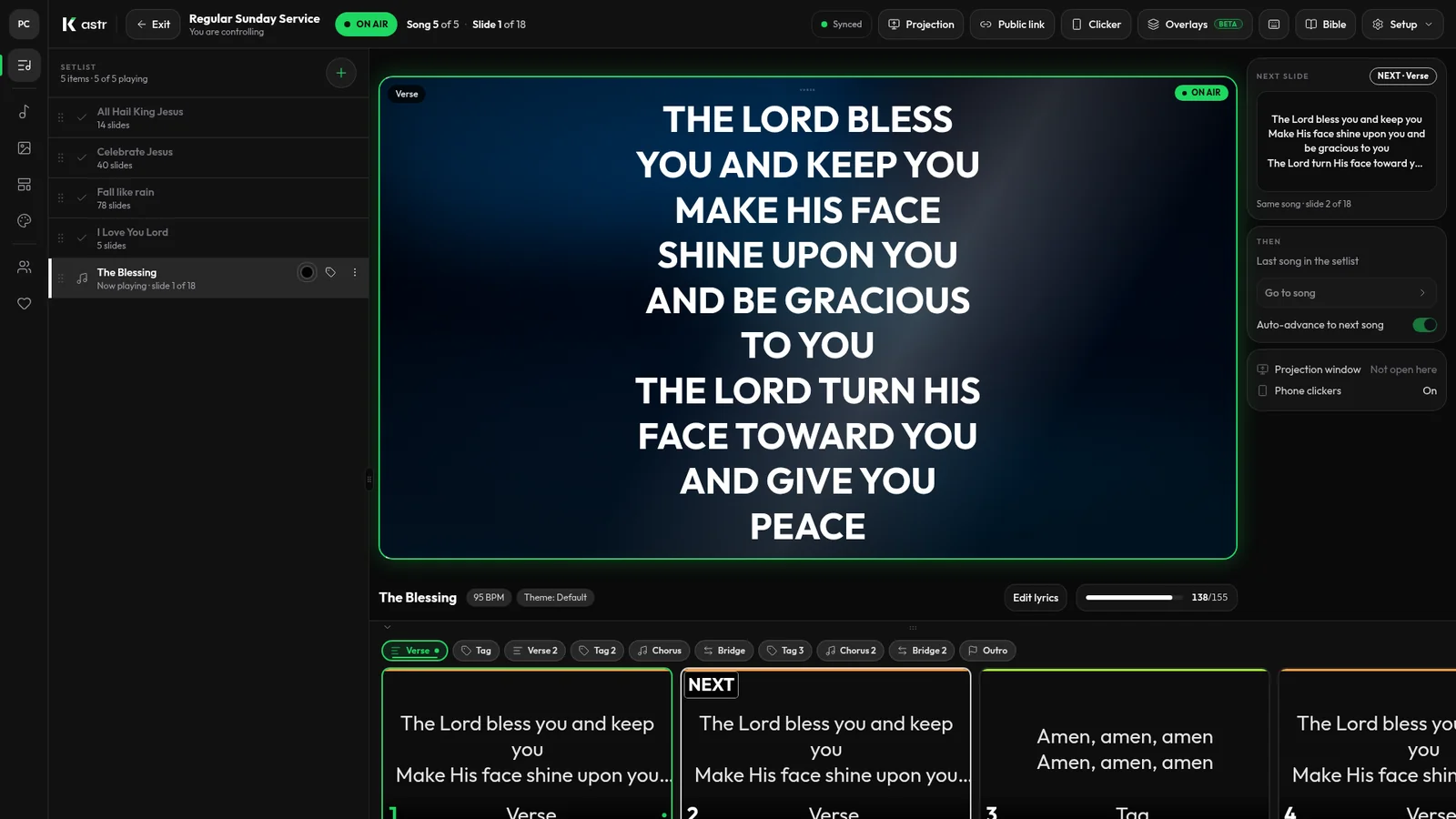
During the service, the volunteer needs only a handful of controls. Kastr's operator deck runs from the keyboard:
The right and left arrows move through slides.
B blacks out the screens, and B again brings them back.
Clicking a section in the setlist jumps straight to it, which helps when the worship leader goes back to the chorus.
That's most of what a Sunday needs. If the volunteer forgets a key, the question mark key shows every shortcut.
Let the screen look after itself
A lone operator doesn't have time to fix formatting during a song. Two Kastr features help here.
Themes save the look once: background, font, size, weight and letter case. Set a theme for the program and every song uses it. You can override the theme and lyric size for the whole program without editing each song.
Auto slice splits long stanzas into the number of lines per slide you choose, so you don't find a slide that's too long halfway through the service.
Plan for the volunteer who can't come
In a team of one, the real risk is the week that person is away. Two things make handover easier.
First, keep the library shared. In Kastr, songs, media, slides and themes live in a workspace the whole team can reach. Invite a backup person with a link or a short code, and they'll see everything the regular volunteer prepared.
Second, write a short note for the booth. It should say how to turn on the projector, which button opens Kastr, and three keys: arrows to move, B to blank. Tape it next to the computer.
Get help from the stage when you need it
The lone volunteer is often also the sound person. During the worship set their hands are on the faders, not the keyboard.
Kastr's phone clicker lets someone else advance the lyrics. Press Clicker in the top bar and have the worship leader or a singer scan the QR code with their phone. They get next and previous buttons. If a guest is leading, you can allow the clicker without sign-in, then press New code afterwards so the old QR code stops working.
The volunteer can still take control at any time. Press Clickers in the bottom bar to pause every phone clicker at once.
Handle surprises without stopping
Small churches change plans on the spot. The pastor asks for a song that isn't in the program, or someone notices a typo during the first verse.
In Kastr, you can add a song, video or slide to the setlist while the show is running, fix a typo on a single slide, or reorder the set. For a song you don't have yet, click the plus beside the setlist, then New song, find or paste the lyrics and press Save and add. It joins the end of the setlist and the screen stays on the current slide.
Pick the version that suits your room
If the church has steady internet, web Kastr runs in a browser with nothing to install. If the connection is unreliable, Kastr for Windows runs fully offline once it's installed, with no account needed. The volunteer can sign in to sync songs, themes and programs from web Kastr if they plan at home.
Free for every team size
Every Kastr feature is free, for a team of one or a team of twenty. There are no paid plans, and nothing is held back for larger churches.
Set it up this week
Have your volunteer build next Sunday's program, run it once on the booth computer, and write the note for the backup person.
Download Kastr for Windows and make Sunday lighter for the one person running your screens.
Need offline projection on Sunday?
Kastr for Windows runs fully offline on the booth computer. Download the installer once when you have a connection, then run your program without signing in.
More from the blog
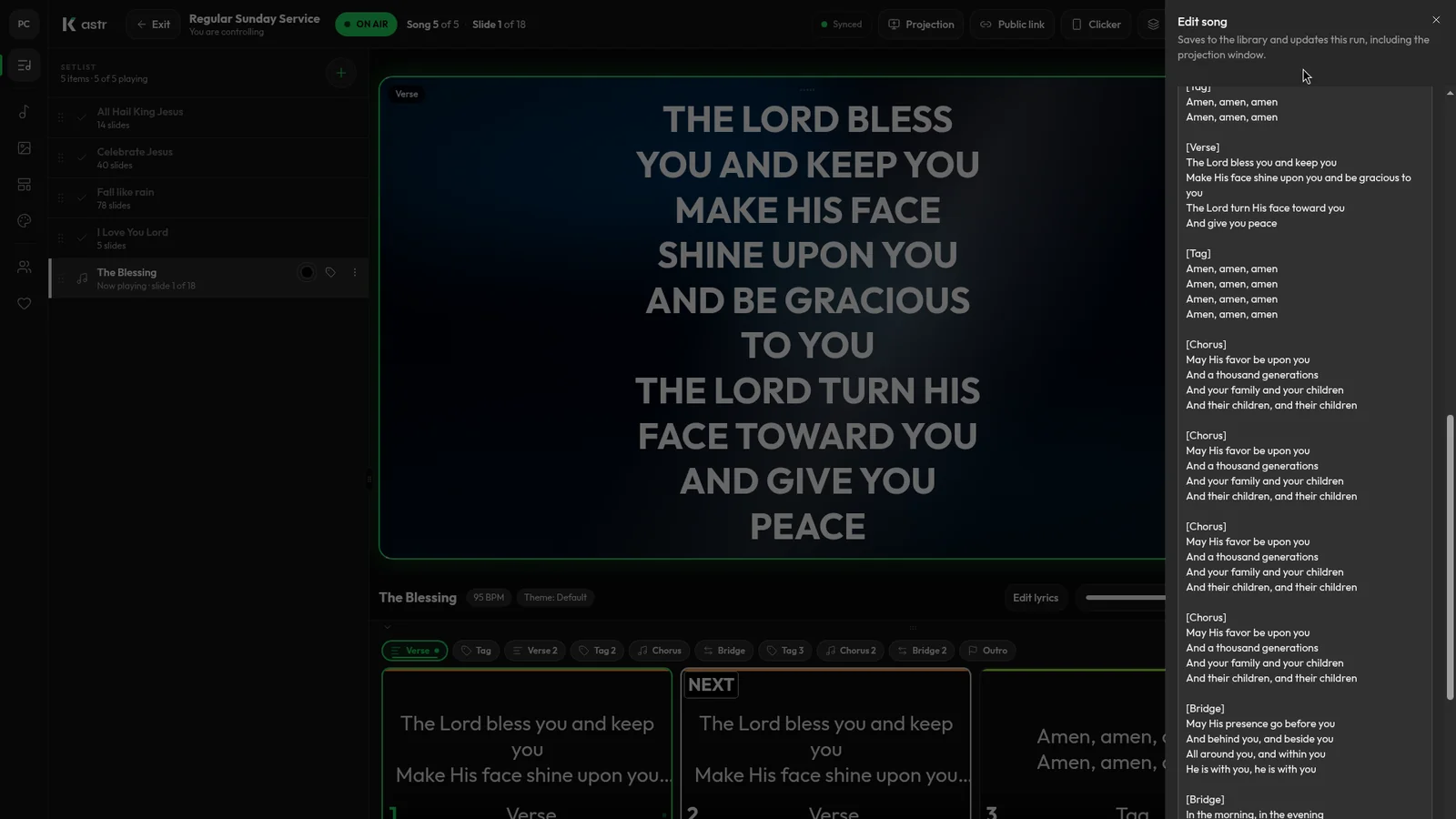
How to format song lyrics into slides that are easy to read
Readable lyric slides come down to how you format the text before it hits the screen. Here's how to prepare lyrics so Kastr builds clean slides every time.
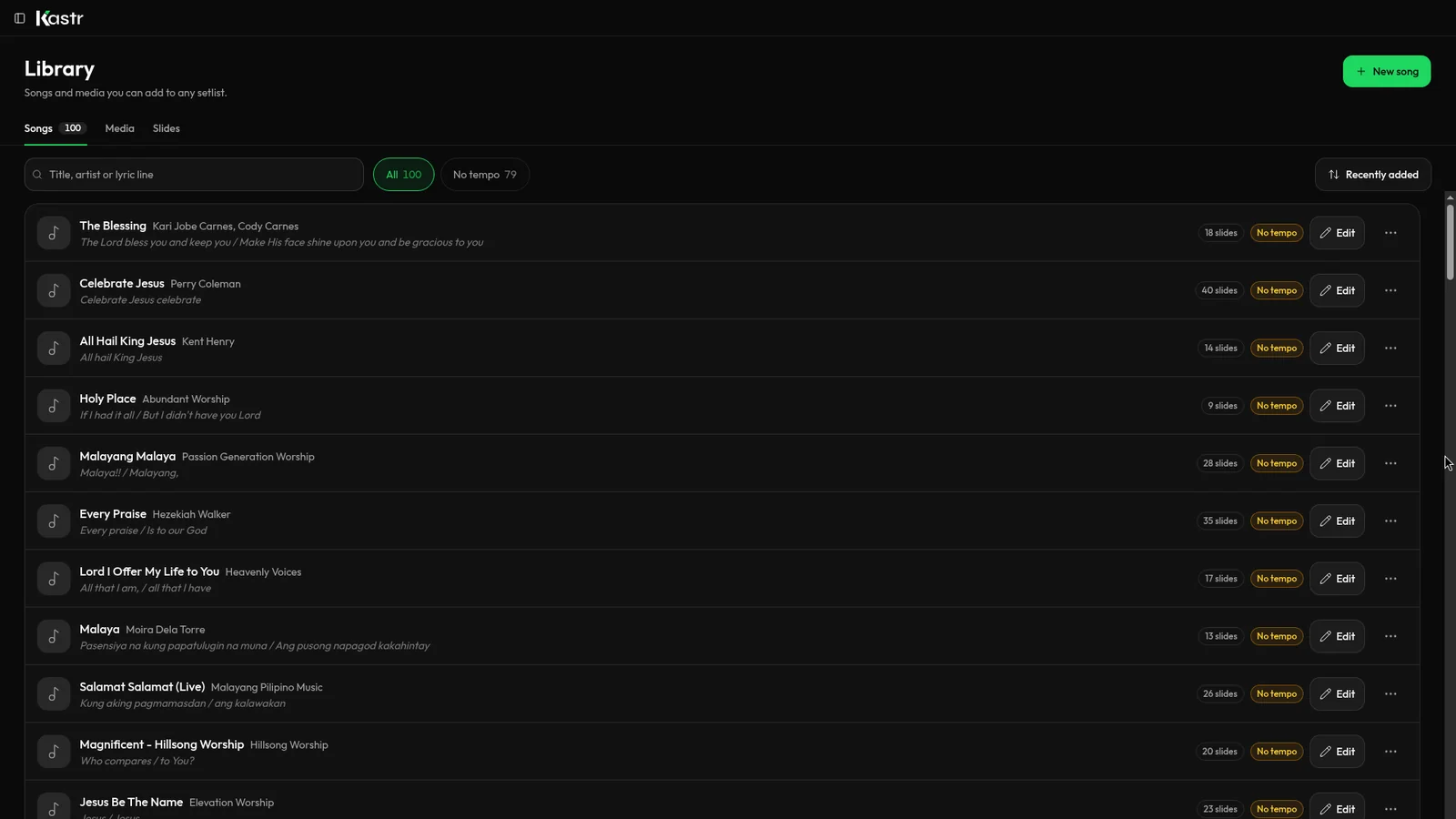
Free lyrics software for church: what free should actually include
Plenty of church lyrics tools call themselves free. Here's how to tell a real free tool from a trial, and what Kastr gives you at no cost.
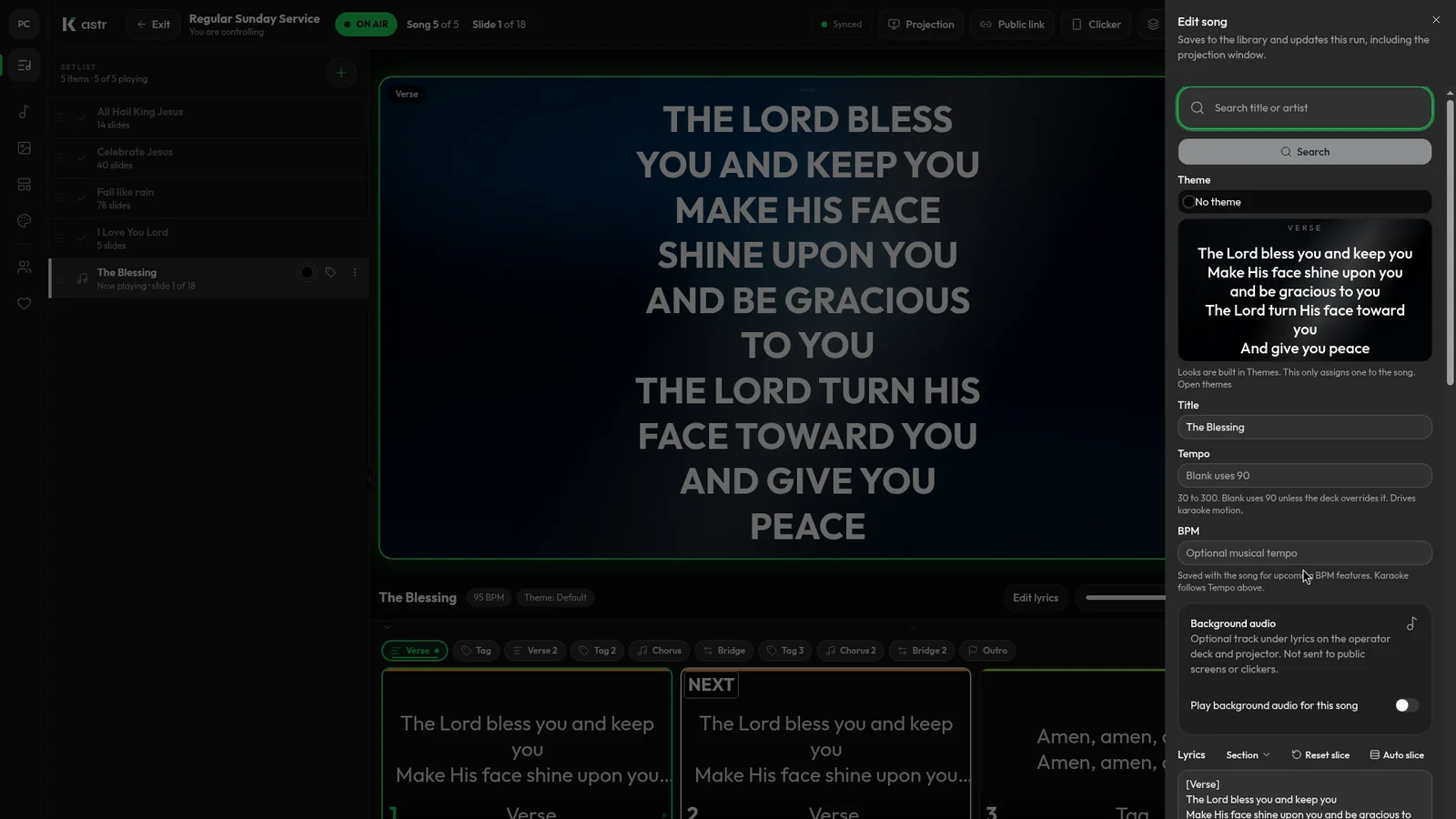
Handling song changes and typos during a live worship service
Worship rarely follows the plan exactly. Here's how to add a song, fix a typo or reorder the set mid-service without the screens going blank.