Free Live Lyrics Projection
How to format song lyrics into slides that are easy to read
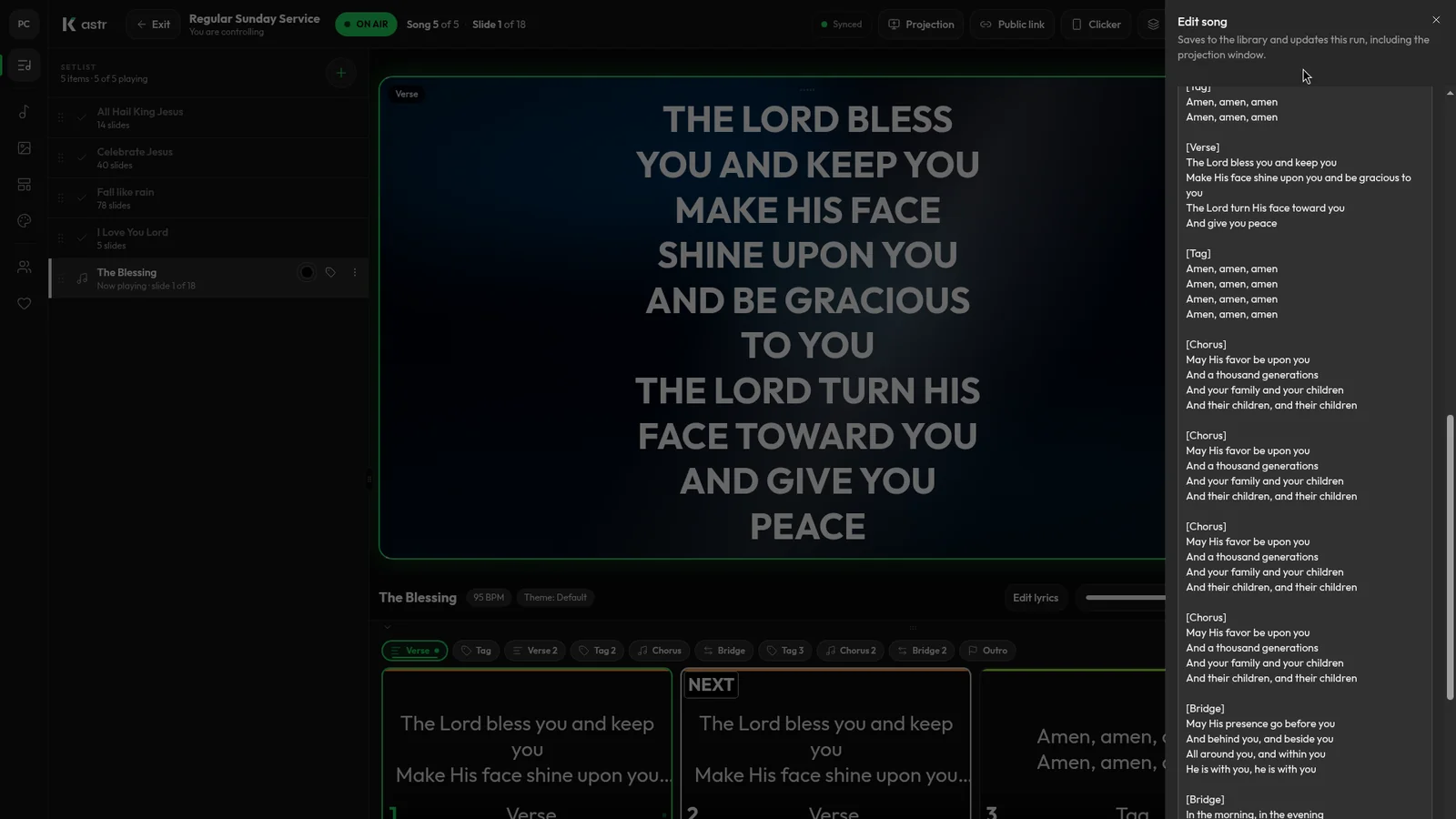
Most lyric slides that are hard to read have the same problems. Too many lines crammed onto one slide, a line break in the middle of a phrase, or no clear way to find the chorus when the band repeats it. None of that is about the projector. It's about how the lyrics were formatted before they went on screen.
This post covers how to format lyrics so the slides come out clean, and how Kastr turns pasted lyrics into slides.
Start with clean text
Lyrics copied from the internet usually need tidying. Look out for chord letters mixed into the text, repeated choruses written out in full when you only need them once, and notes like "x2" or "repeat" that you don't want on screen.
Take a minute to strip those out before you paste. It's faster than fixing slides one by one later.
Use blank lines to set the slide breaks
In Kastr, every blank line in the lyrics starts a new slide. That gives you direct control over what the congregation sees together.
A good rule is to break where the music breaks. Keep a phrase on one slide if it's sung in one breath. Put a blank line where the singers pause or the melody turns. Avoid breaking a sentence across two slides if you can, because people lose their place.
Label the sections
A line on its own like Verse 1, Chorus, Pre-chorus or Bridge labels the section that follows it. Kastr uses those labels in two ways. They show in the setlist so you can see where you are in the song, and you can jump straight to a section during the show.
That second part matters when the worship leader repeats the bridge or goes back to the chorus without warning. With labels, the operator clicks the section instead of hunting through slides.
Here's a short example. Lyrics formatted like this become three slides, two under Verse 1 and one under Verse 2:
Verse 1
Amazing grace, how sweet the sound
That saved a wretch like me

I once was lost, but now am found
Was blind, but now I see

Verse 2
'Twas grace that taught my heart to fear
And grace my fears relieved
Decide how many lines go on a slide
Two lines per slide is easy to read in most rooms. Four lines can work if the screen is large and the text is big enough. More than that, and the people at the back start squinting.
If you've pasted a song with long stanzas, you don't have to add blank lines by hand. In the song editor, click Auto slice and choose how many lines go on each slide. Kastr splits the stanzas for you. If you don't like the result, Reset slice undoes it.
Check the size in the preview
The song editor has a preview above the lyrics. Use it to check the theme, and switch between Single and All to step through slides or see them all at once. The preview size setting only changes the preview, so you can check how a slide looks at a bigger size without changing the song.
Once you've settled on a size that works for your room, save it in a theme. A theme stores the background, font, size, weight and letter case, and you can assign it to a song or to a whole program.
Test your formatting before you sign up
If you want to see how your lyrics will split before you create an account, Kastr has a free lyric generator on the site. Paste the lyrics, and it shows you the slides. It's a quick way to check a song's formatting, or to show your worship leader how the blank lines work.
Search and reuse
Formatting a song well takes a few minutes. The payoff is that you only do it once. In Kastr, songs go into a library the whole team shares, and you can find any song later by its title, its artist or a line of the lyrics.
Next time the song is in the set, add it from the library. It already has its slide breaks and section labels.
Karaoke for new songs
When the church is learning a new song, it can help to show people where the words fall in the music. Set a tempo on the song and Kastr's Karaoke option lights each word on the beat. You can also set an optional BPM.
Fixing a slide during the service
Even well-formatted songs have the occasional typo. In Kastr you can fix a typo on a single slide during the show, and the screens keep up without stopping.
Put your best-formatted songs on screen
Kastr is free, with no paid plans. Paste one of your regular songs, add the section labels, and see how it looks on your projector.
Download Kastr for Windows or open it in your browser and format your first song in a couple of minutes.
Need offline projection on Sunday?
Kastr for Windows runs fully offline on the booth computer. Download the installer once when you have a connection, then run your program without signing in.
More from the blog
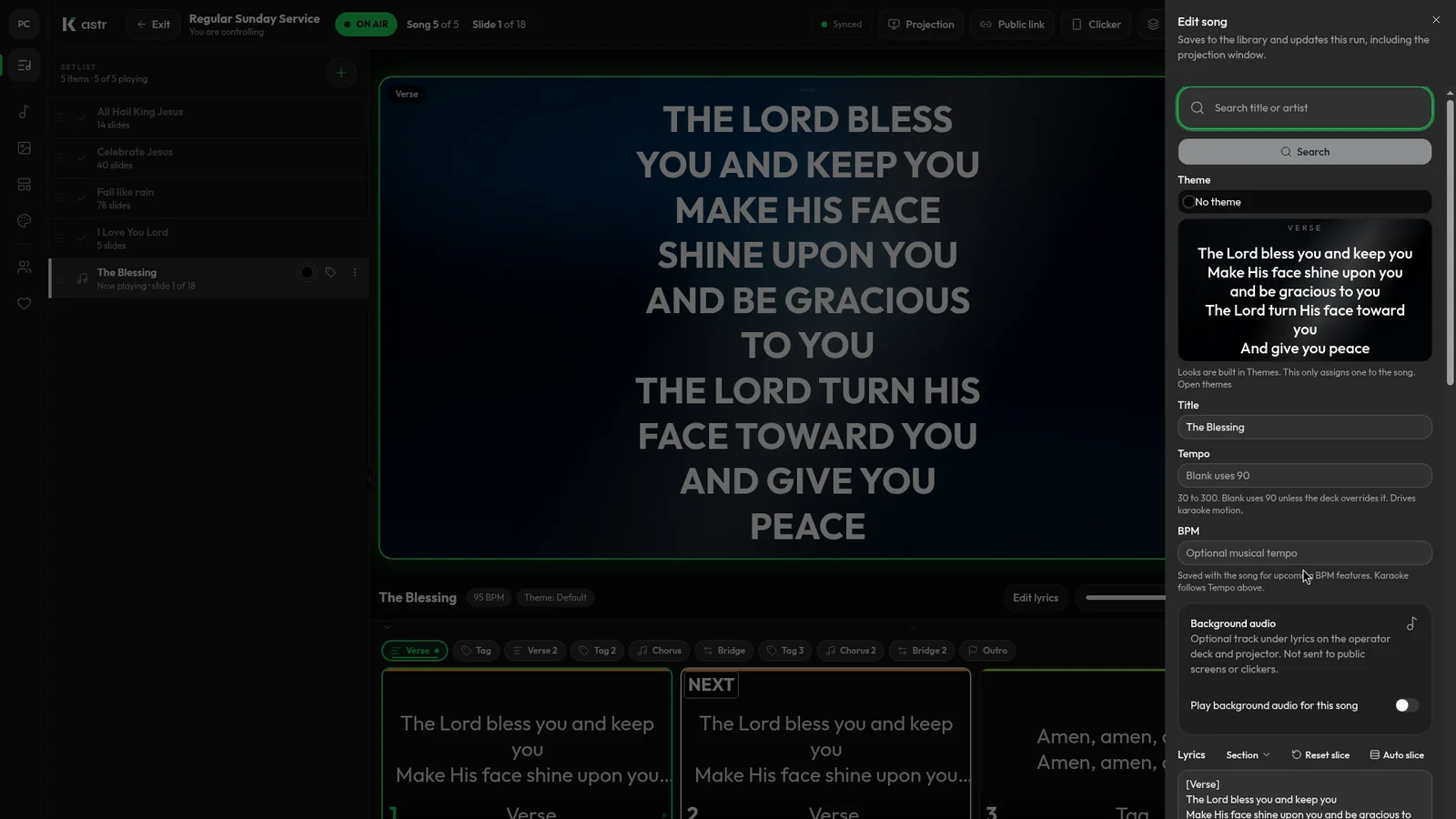
Handling song changes and typos during a live worship service
Worship rarely follows the plan exactly. Here's how to add a song, fix a typo or reorder the set mid-service without the screens going blank.
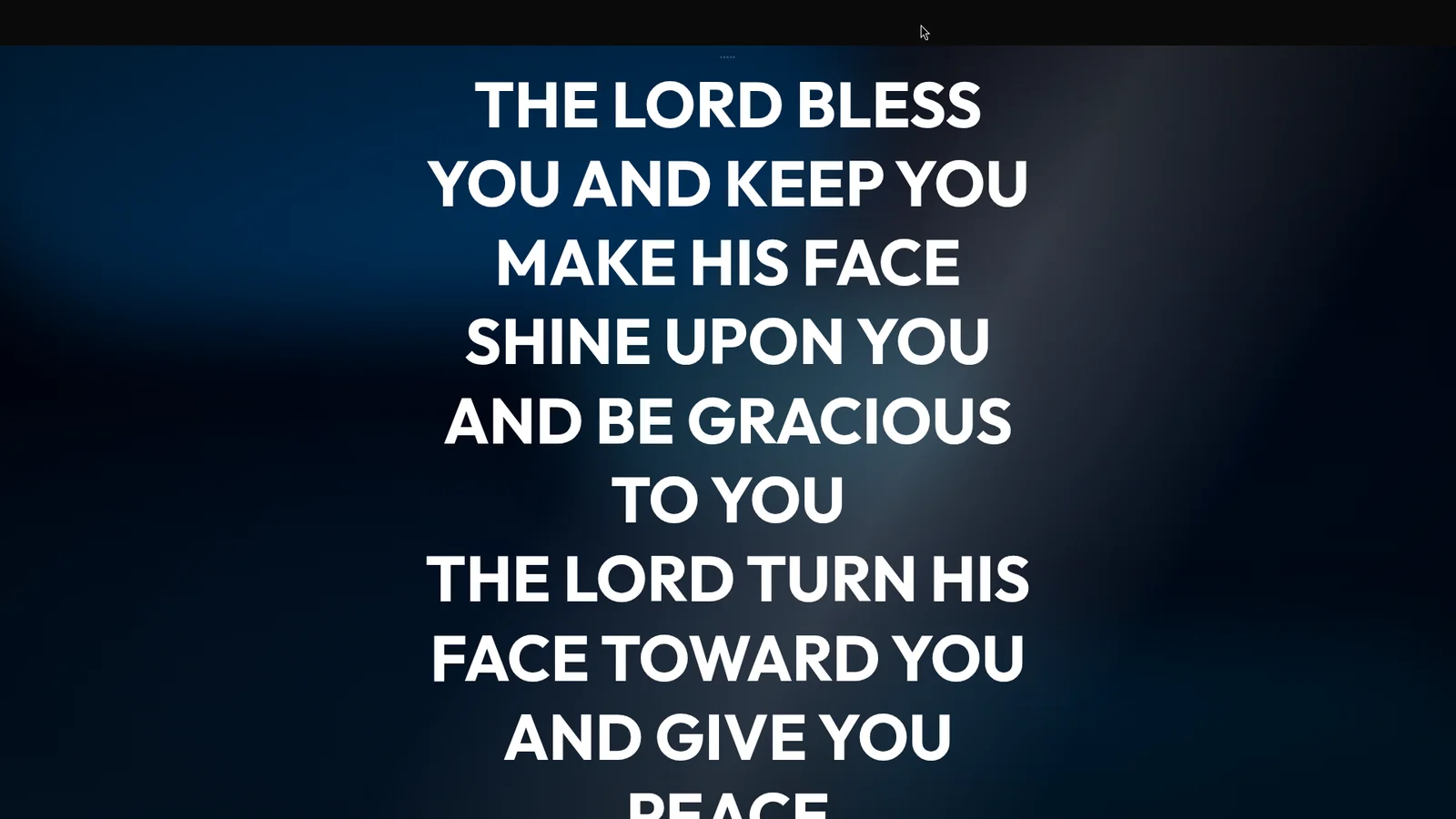
Show live lyrics on the projector, lobby TVs and phones at once
The main projector isn't the only screen that needs lyrics. Here's how to put the live slide on lobby TVs, phones and stream computers from one deck.
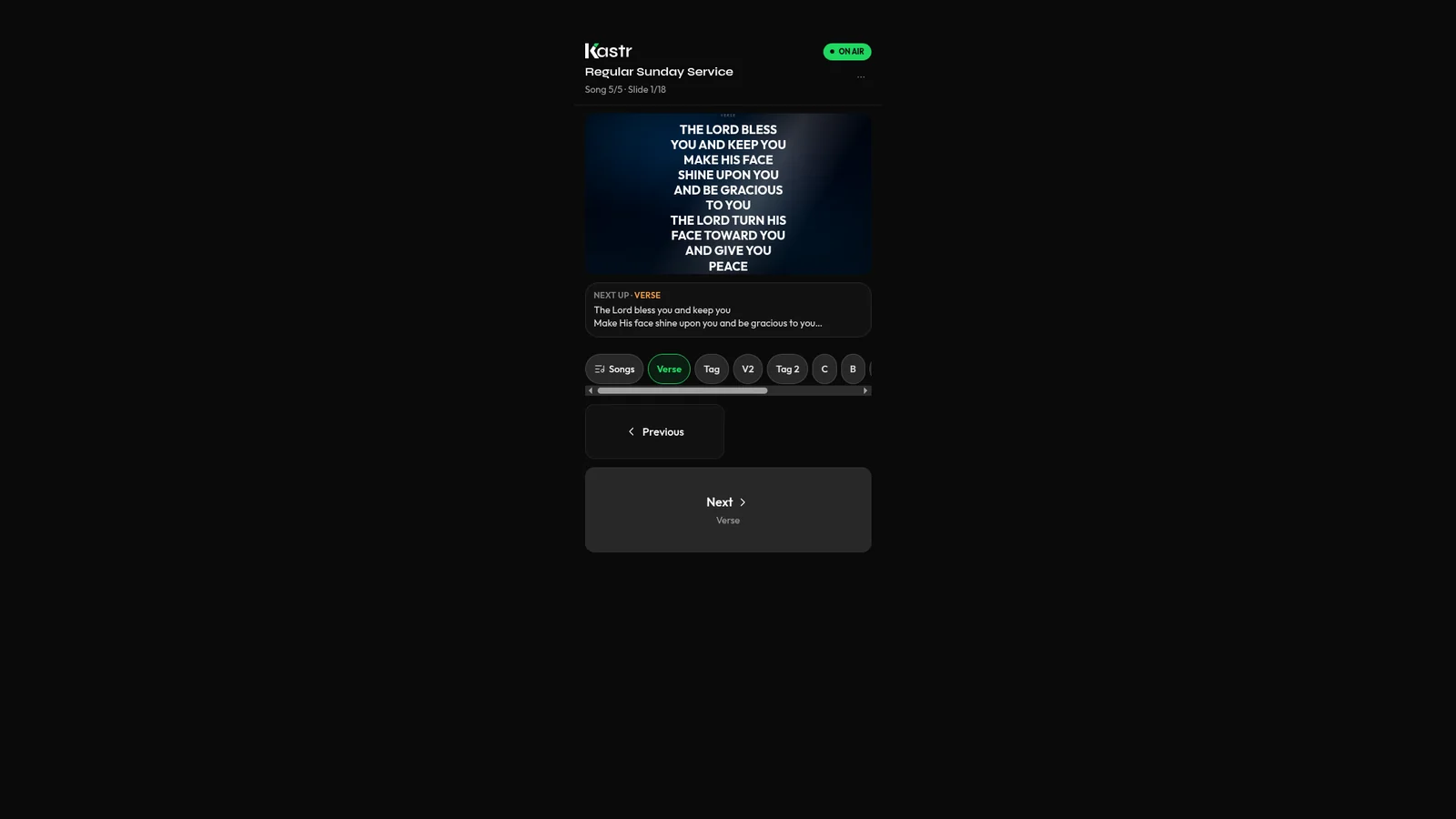
Use your phone as a slide clicker for church lyrics
The person who knows when the chorus comes back isn't always the one at the computer. Kastr's phone clicker lets a teammate advance slides from anywhere in the room.