Free Live Lyrics Projection
How to project song lyrics from a laptop at church
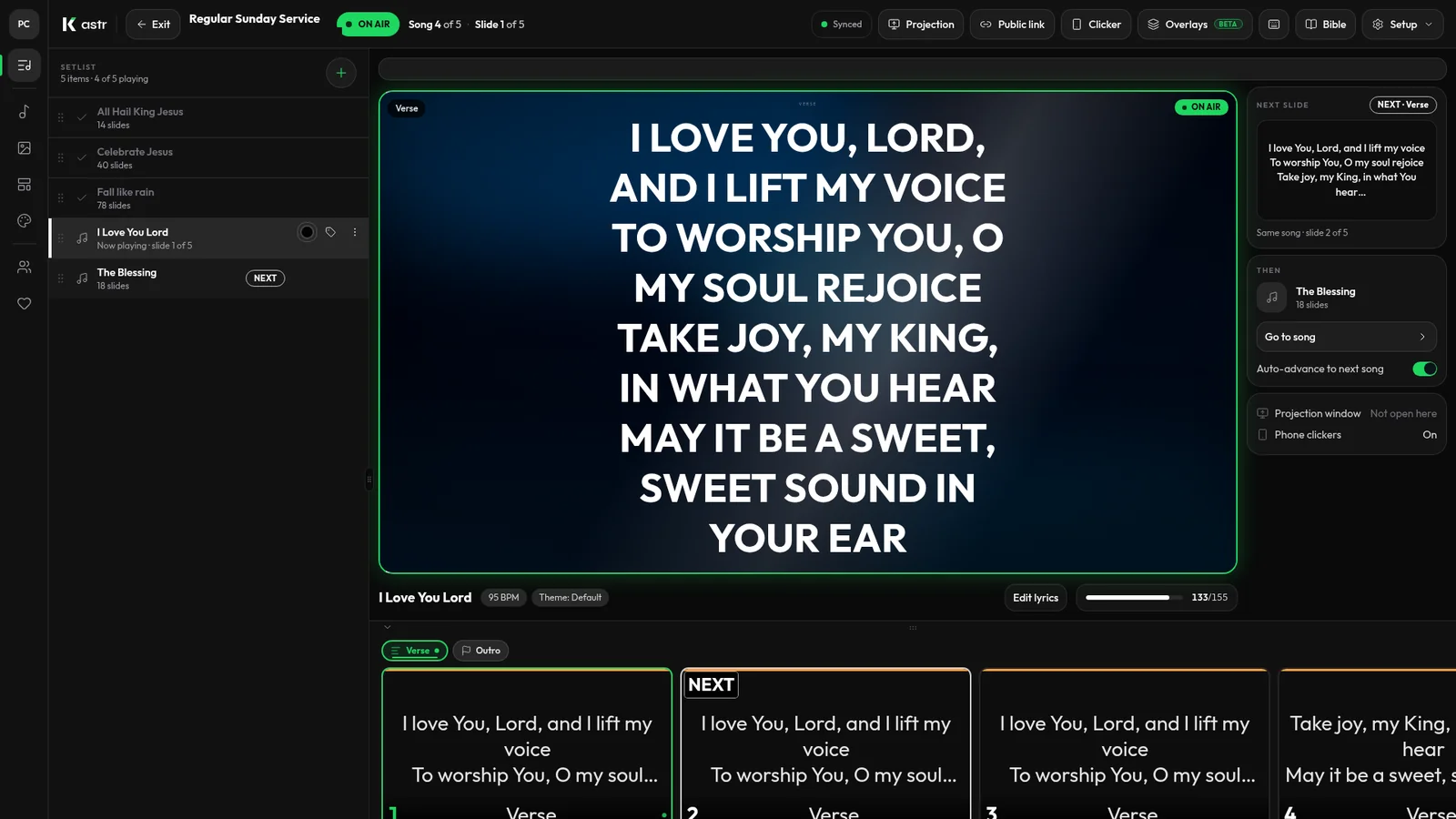
A lot of churches run their worship lyrics from a single laptop. It might be the pastor's laptop, a volunteer's, or an older machine that lives in a cabinet near the projector. That's enough hardware to do the job well, as long as the software and the setup are right.
This guide walks through the setup and how to run the slides with Kastr.
What you need
You need a laptop, a projector or TV, and a cable that connects them. Most projectors and TVs take HDMI. If your laptop only has USB-C, you'll need an adapter. Bring a spare cable if you can. Cables get borrowed and never come back.
For software, Kastr runs in a modern browser, or you can install Kastr for Windows if the laptop runs 64-bit Windows. The Windows app works with no internet connection and doesn't need an account.
Connect the projector as a second screen
The most common problem with laptop projection is that the room sees exactly what the operator sees. Every menu, notification and mouse movement ends up on the wall.
To avoid that, set the projector up as an extended display, not a mirror. On Windows, press the Windows key and P together and choose Extend. Now the laptop screen and the projector are two separate displays, and you can put different windows on each one.
Check the projector's resolution while you're in display settings. If the slides look stretched or blurry, set the projector display to its native resolution.
Keep the controls on the laptop
Kastr splits the job into two windows. The operator deck stays on your laptop and shows the setlist, the current slide and your controls. The projection window goes on the projector and shows only the slides.
When you run a program, press the Projection button in the top bar. A new window opens. Drag it onto the projector display and press F for fullscreen. The congregation sees the lyrics. You see the deck.
If you're on a narrow laptop screen, the Projection button shows as a screen icon.
Build the songs before Sunday
Preparing songs is where most of the time goes, so do it before you get to church. In Kastr, open Songs and click New song. You can search for a title or artist to fill in the lyrics, or type the title and paste the lyrics yourself.
Every blank line starts a new slide. A line like Verse 1, Chorus or Bridge labels the section so you can jump straight to it during the song. If a slide has too many lines for the room, click Auto slice and choose how many lines go on each slide.
Then build a program for the service. Add the songs in running order, drop in any announcement slides or videos, and save it. If you're on web Kastr, anyone on the team can open the same program from their own computer.
Running the slides from the keyboard
Once the service starts, you mostly need the keyboard. The right arrow moves to the next slide and the left arrow goes back. You can also click any slide in the setlist on the left to jump to it.
Press B to black out the screens, for example during a prayer or when the pastor starts speaking. Press B again or click Restore screens to bring the lyrics back. While blackout is on, the slides still move underneath, so you can get to the right place before the screen comes back.
If you forget a shortcut, press the question mark key to see them all.
Laptop power and other small things
A few habits will save you on a Sunday morning.
Plug the laptop in. Projection keeps the screen busy and batteries drain faster than you expect.
Turn off notifications or use Focus mode, so a message preview doesn't appear on top of anything. With an extended display it won't show on the projector, but it will still distract you.
Set the laptop not to sleep while it's plugged in. A screen that goes dark during a long sermon can cause a scramble when the next song starts.
If the church internet is unreliable, use Kastr for Windows. Once it's installed, it runs without a connection.
When the laptop isn't the operator's
Sometimes the laptop connected to the projector sits at the front, and the person running lyrics sits somewhere else. Kastr has a phone clicker for that. Press Clicker in the top bar, and a teammate scans the QR code to get next and previous buttons on their phone. You can pause every clicker with one switch if you need to take control back.
Rehearse once on the real setup
Before your first Sunday, connect the laptop to the projector in the room and run through the whole program. Check that the text is readable from the back row, that the projection window covers the full screen, and that the arrow keys work while the deck window is active.
That fifteen-minute run will catch almost every problem you'd otherwise find during the first song.
Get Kastr on your laptop
Kastr is free, with no paid plans, on the web and on Windows. Download Kastr for Windows and set up this Sunday's lyrics on the laptop you already have.
Need offline projection on Sunday?
Kastr for Windows runs fully offline on the booth computer. Download the installer once when you have a connection, then run your program without signing in.
More from the blog
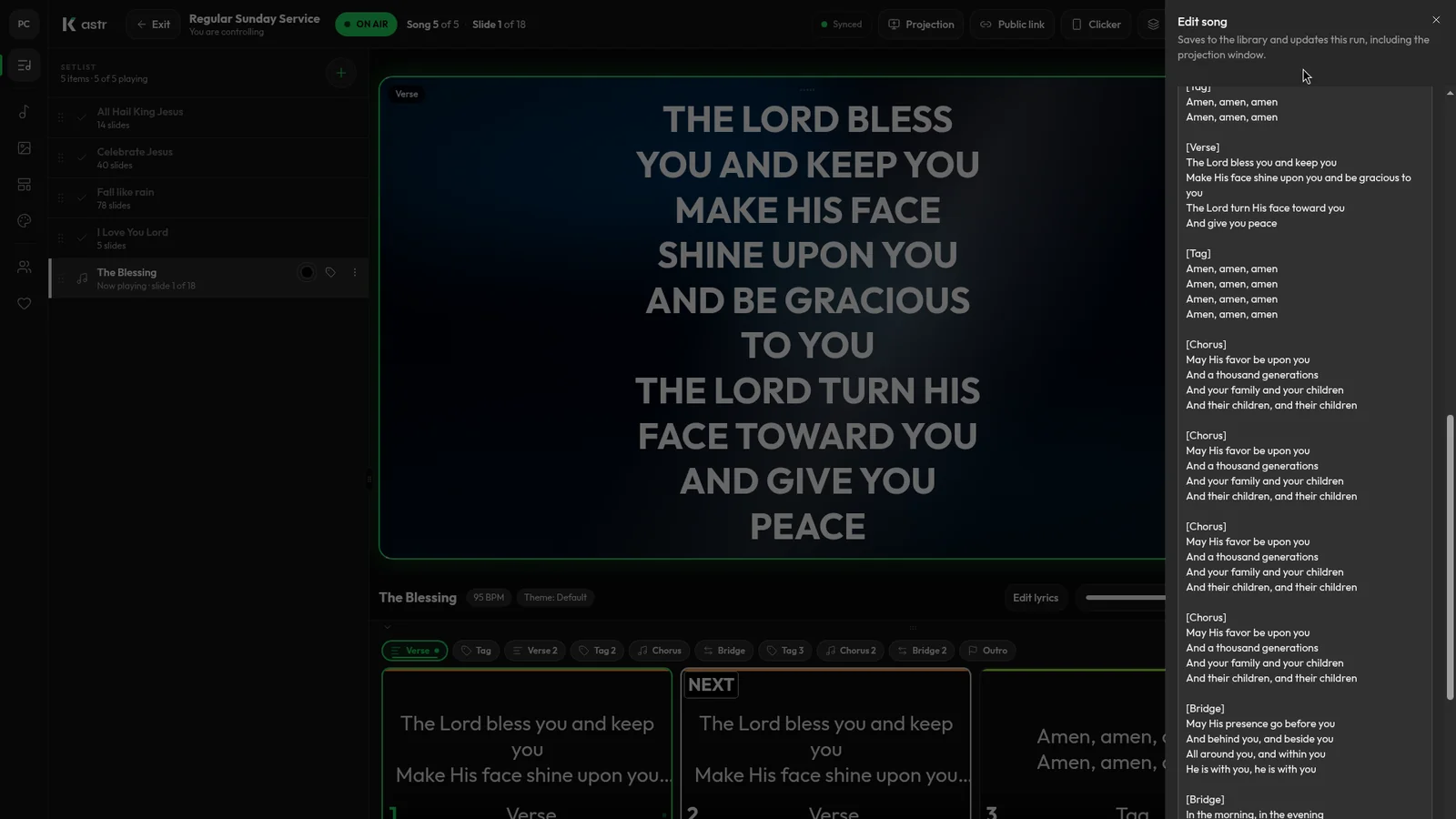
How to format song lyrics into slides that are easy to read
Readable lyric slides come down to how you format the text before it hits the screen. Here's how to prepare lyrics so Kastr builds clean slides every time.
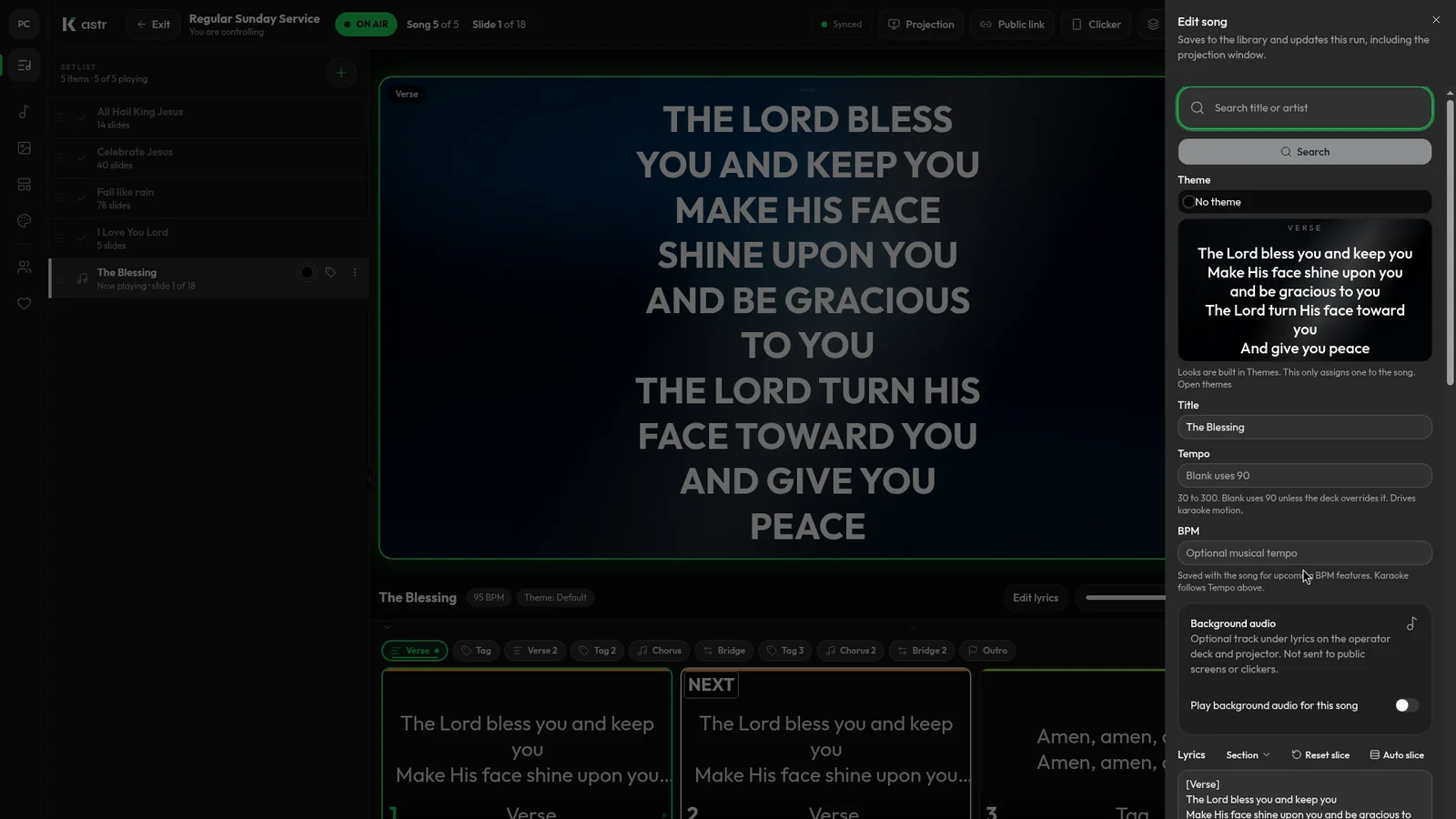
Handling song changes and typos during a live worship service
Worship rarely follows the plan exactly. Here's how to add a song, fix a typo or reorder the set mid-service without the screens going blank.
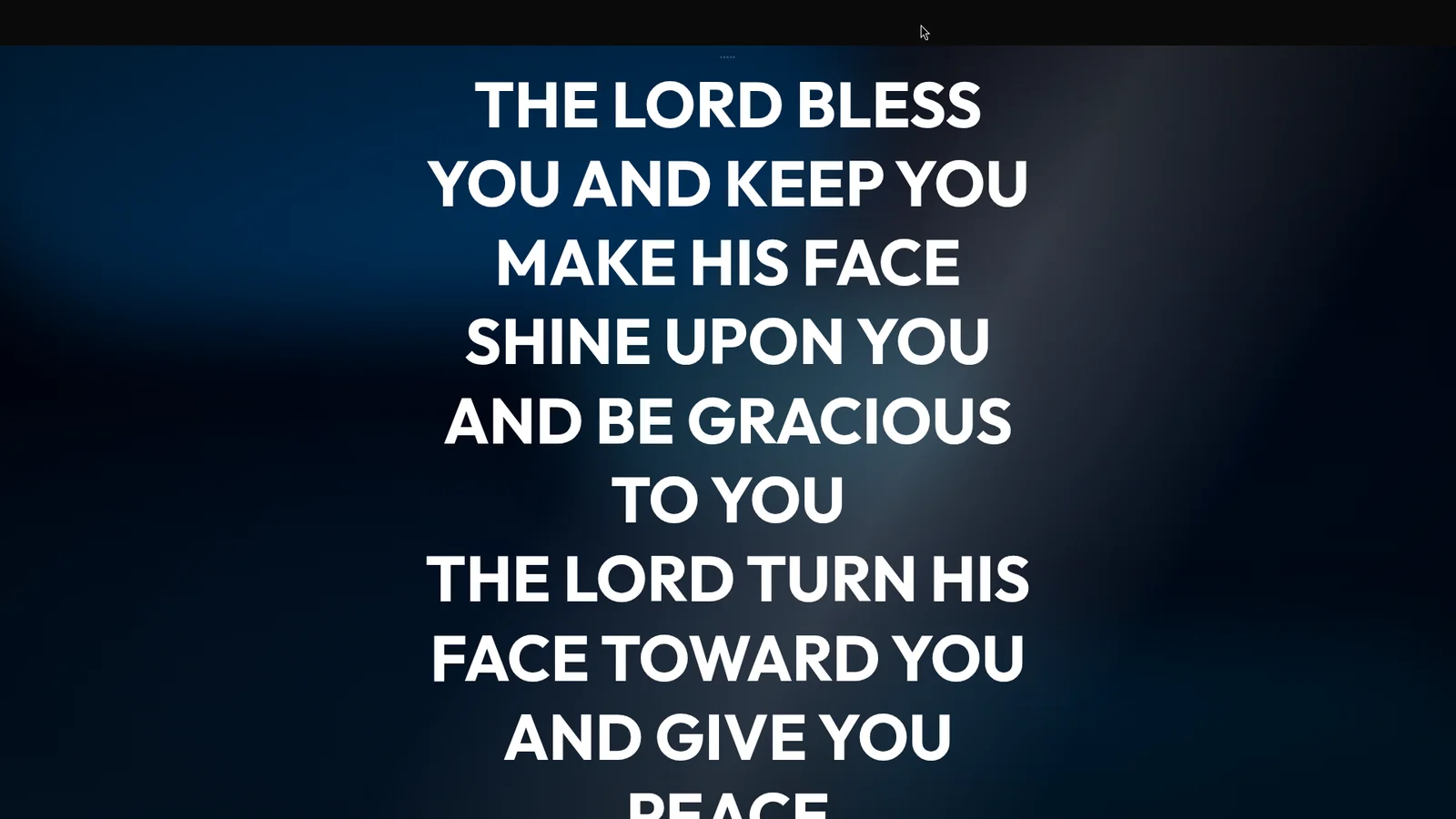
Show live lyrics on the projector, lobby TVs and phones at once
The main projector isn't the only screen that needs lyrics. Here's how to put the live slide on lobby TVs, phones and stream computers from one deck.