Free Live Lyrics Projection
Show live lyrics on the projector, lobby TVs and phones at once
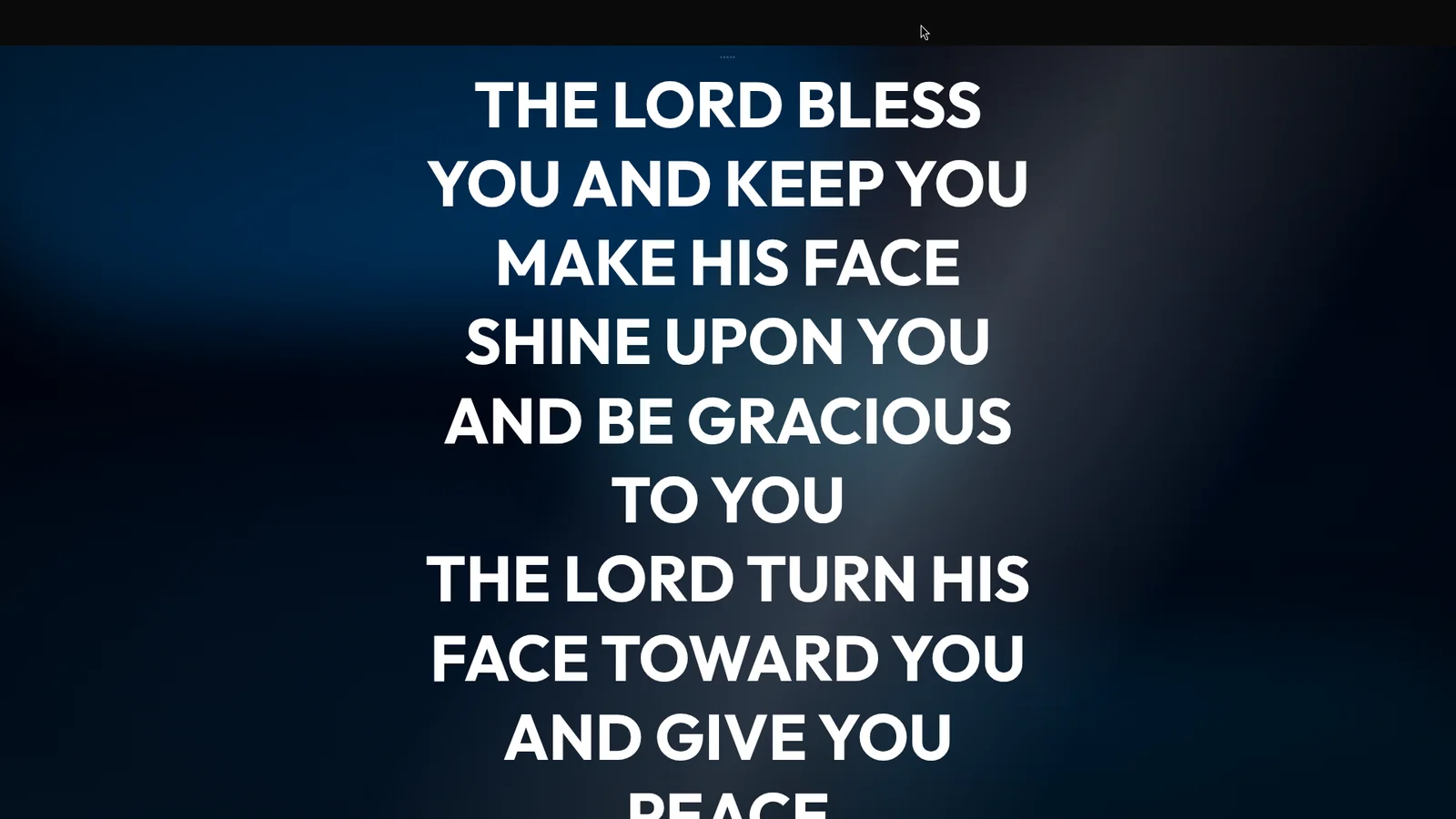
Most churches start with one screen. Then the overflow room needs lyrics. Then someone sets up a TV in the lobby for latecomers, the livestream needs the words, and a member with poor eyesight asks if they can follow along on their phone.
Each of those used to mean another cable, another computer, or another copy of the slides that someone had to keep in step. Kastr runs every screen from one deck instead.
The main projector
For the screen at the front of the room, Kastr opens a projection window. When you run a program, press the Projection button in the top bar. Drag the new window onto the projector or LED wall and press F for fullscreen.
The audience sees the slides and none of your controls. The operator deck stays on your own screen with the setlist and buttons.
This needs the projector connected to the computer running the deck, with the display set to extend rather than mirror.
Every other screen from one link
For screens that aren't wired to the booth computer, Kastr has a public screen link. In the operator deck, press Public link in the top bar to copy it. Open that link on any device with a browser, and it shows the live slide.
That covers the screens that are hard to cable:
Lobby or foyer TVs, using a smart TV browser or a small computer connected to the TV.
An overflow room, on whatever screen is in there.
A stream computer, so the lyrics are available for the livestream.
Phones, for people who'd like the words in their hand.
The people watching don't need to sign in or install anything. When you move to the next slide, every screen moves with you.
Video stays in step too
If your program includes a video, the projector keeps up with the deck. You can play, pause, seek and mute from the operator deck, and the projector keeps the same playhead and volume. In the deck, Space plays and pauses a video and M mutes the projector.
Blackout applies everywhere
When you press B or click Blackout, the screens clear. That's useful during prayer, or when the pastor wants attention on the pulpit and not the wall. Press B again or click Restore screens to bring the lyrics back.
While blackout is on, the slides still move underneath, so you can get to the next song before you restore the screens.
Changing slides from the stage
The person controlling the slides doesn't have to sit at the booth computer. Press Clicker in the top bar and a teammate scans the QR code with their phone to get next and previous buttons. Whatever they tap moves every screen, including the public link.
If you need to take control back, press Clickers in the bottom bar to pause every phone clicker at once. The header shows who is controlling the deck.
Things to check before Sunday
A few practical points for a multi-screen setup.
The devices showing the public link need an internet connection. Test the lobby TV's Wi-Fi before the service, not during it.
Open the public link on each screen before people arrive, and set each browser to fullscreen.
Look at each screen from where people will actually stand. A lobby TV may need a larger lyric size than the main projector. You can set a program theme and lyric size that apply to every song in the set.
Plan who watches the screens
With several screens in different rooms, the operator can't see all of them. Ask someone in the overflow room or the lobby to tell the booth if a screen goes dark or stops updating. A quick message on the team chat is enough. Most problems turn out to be a TV that went to sleep or a browser that left fullscreen, and both are easy to fix if someone notices early. It also helps to label each device with what it should be showing, so a new volunteer can set it up without asking.
Why one deck is better than several copies
The alternative to a shared link is running separate copies of the slides on separate computers, each with its own operator, or one operator trying to keep two laptops in step. That doubles the chances of a screen showing the wrong verse.
With one deck driving everything, a correction only has to happen once. If you fix a typo on a slide mid-song, add a song, or reorder the set, every screen follows.
Free for any number of screens
Kastr doesn't charge for extra screens or outputs. There are no paid plans, and the public screen link, projection window and phone clicker are all free.
Put your lyrics on every screen this Sunday
Run your program, open the projection window on the main screen and paste the public link into the lobby TV's browser.
Download Kastr for Windows or open it in your browser and get every screen in the building showing the same slide.
Need offline projection on Sunday?
Kastr for Windows runs fully offline on the booth computer. Download the installer once when you have a connection, then run your program without signing in.
More from the blog
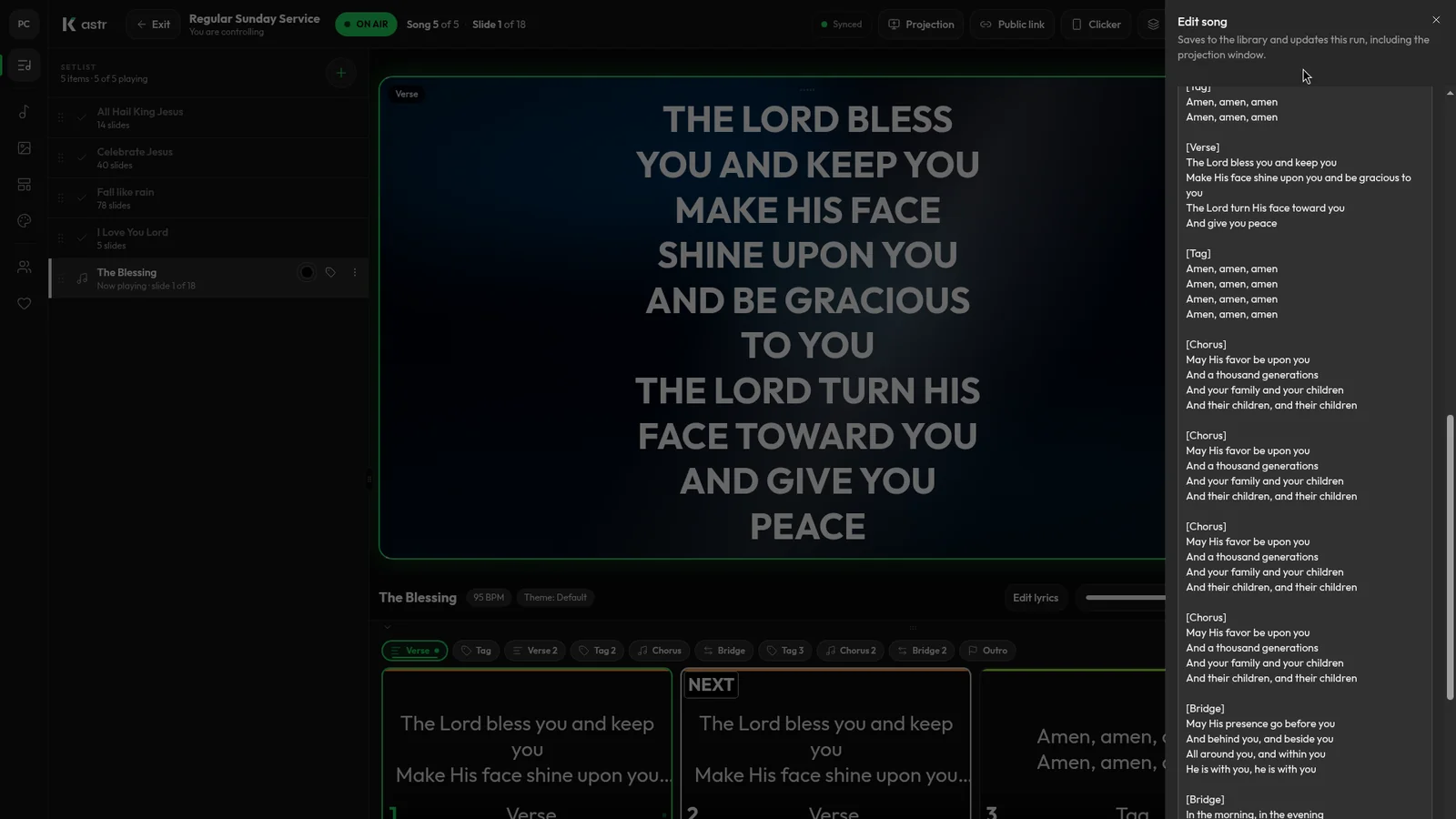
How to format song lyrics into slides that are easy to read
Readable lyric slides come down to how you format the text before it hits the screen. Here's how to prepare lyrics so Kastr builds clean slides every time.
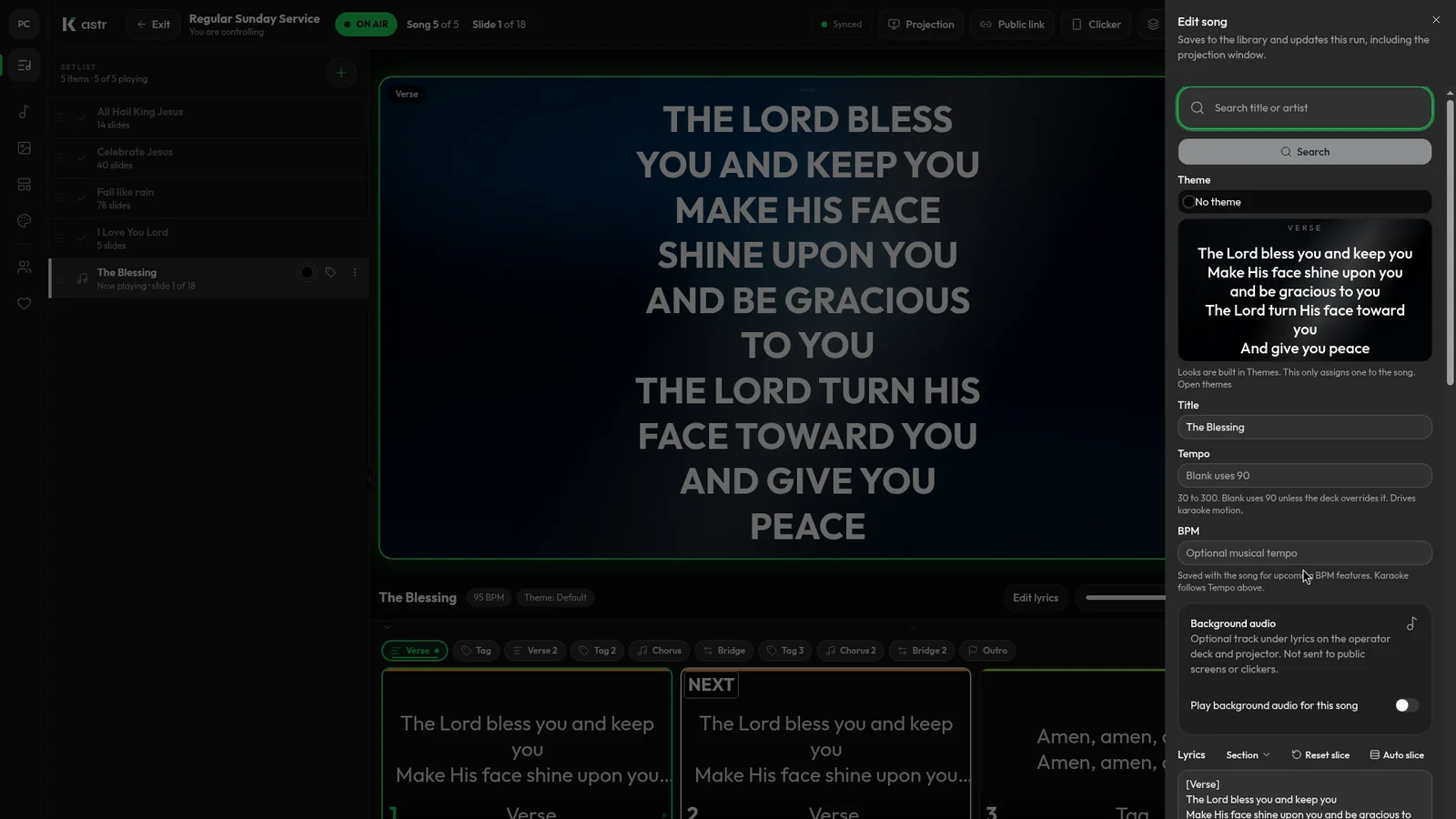
Handling song changes and typos during a live worship service
Worship rarely follows the plan exactly. Here's how to add a song, fix a typo or reorder the set mid-service without the screens going blank.
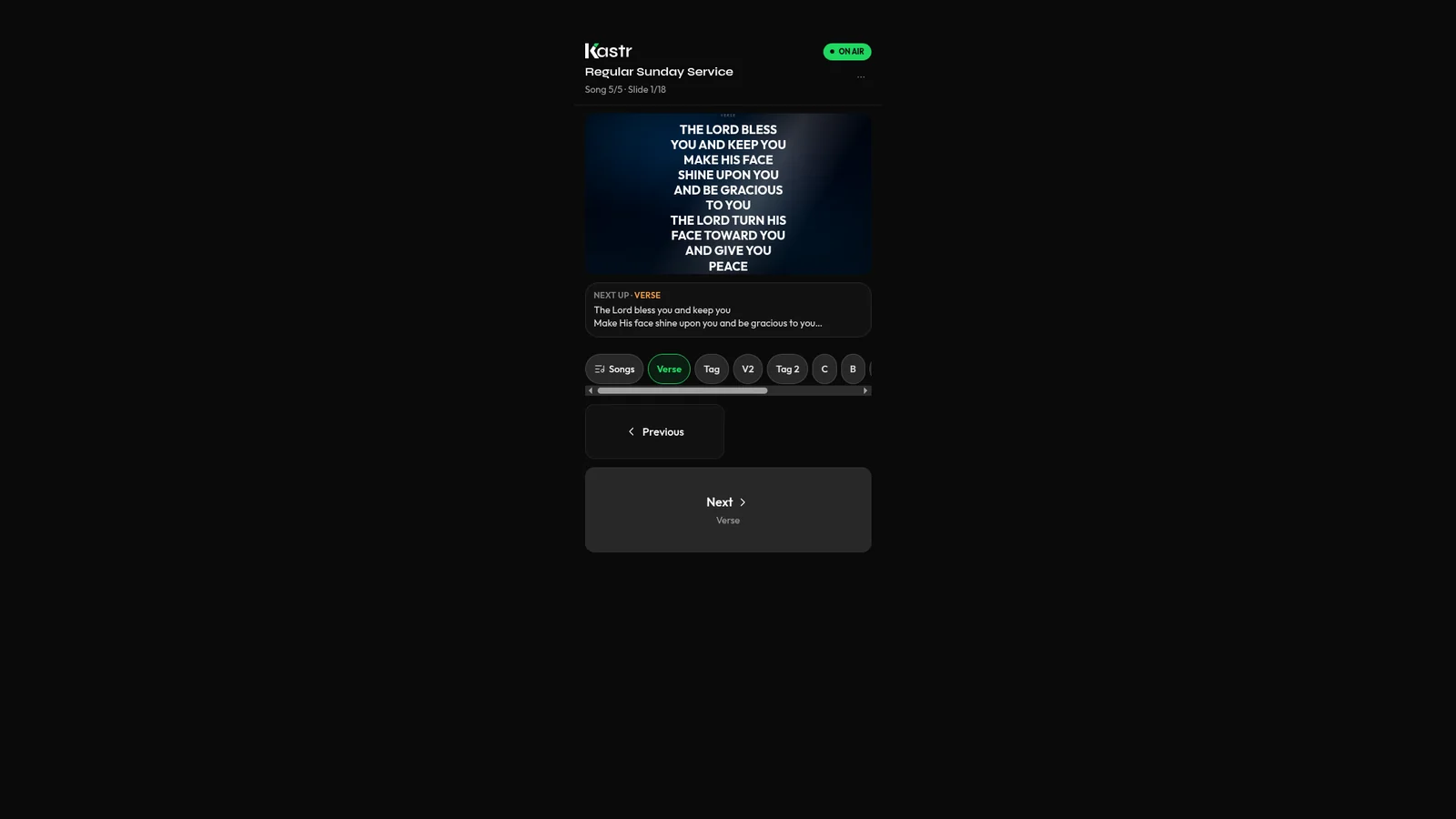
Use your phone as a slide clicker for church lyrics
The person who knows when the chorus comes back isn't always the one at the computer. Kastr's phone clicker lets a teammate advance slides from anywhere in the room.