Free Live Lyrics Projection
Handling song changes and typos during a live worship service
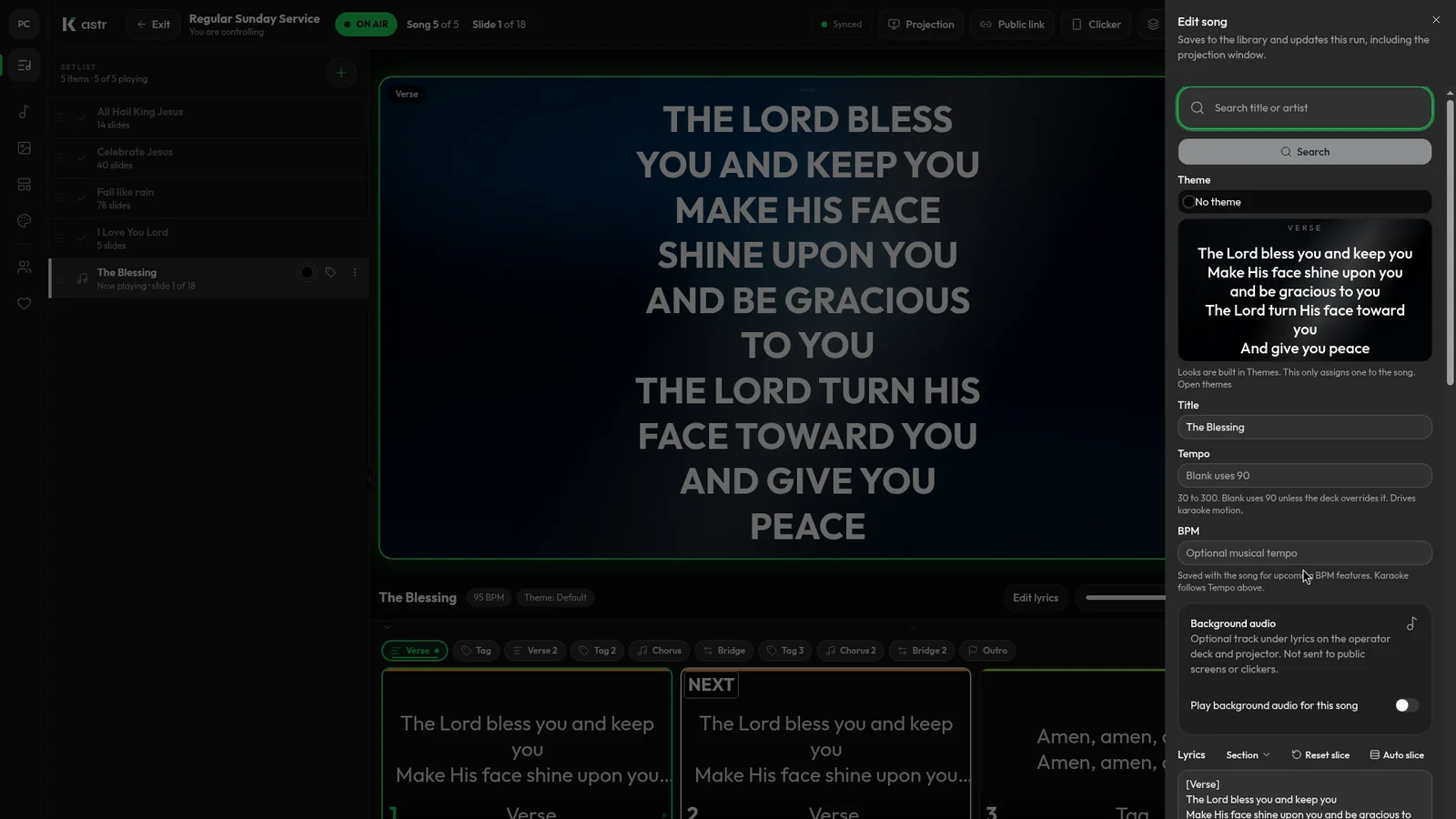
Every media volunteer knows the moment. The worship leader goes back to the bridge when the program says the song is over. The pastor asks for a song that isn't in the set. A typo in the second verse is up on the wall in front of everyone.
The service keeps going while you deal with it. This post covers how to handle the common live changes in Kastr without stopping the screens.
Jump to any section
The most frequent change is a repeat. The band goes back to the chorus, or sings the bridge three times instead of once.
If your songs have section labels, this is a single click. In Kastr, lines like Verse 1, Chorus or Bridge in the lyrics label the sections, and you can jump to any of them from the setlist on the left side of the deck. You don't have to click back through every slide to find it.
This is the best reason to label every song when you add it. It takes seconds during preparation and saves you during the service.
Add a song you already have
When the pastor asks for a song that's in the library but not in the program, add it to the setlist while the show is running. Search the library by title, artist or a line of the lyrics, and add it. The screens keep showing the current slide while you do it.
You can also drag the setlist into a new order during the service if the worship leader swaps two songs.
Add a song you don't have yet
Sometimes the request is a song nobody has entered. In Kastr, click the plus beside the setlist, then New song. Find the lyrics with the search, or paste them in, and press Save and add.
The song joins the end of the setlist and the show stays on the current slide. The deck's keyboard shortcuts are paused while that window is open, so typing the lyrics won't move the slides by accident.
It's worth having a lyrics source you trust bookmarked for this, so you're not searching from scratch in the middle of a song.
Fix a typo on the spot
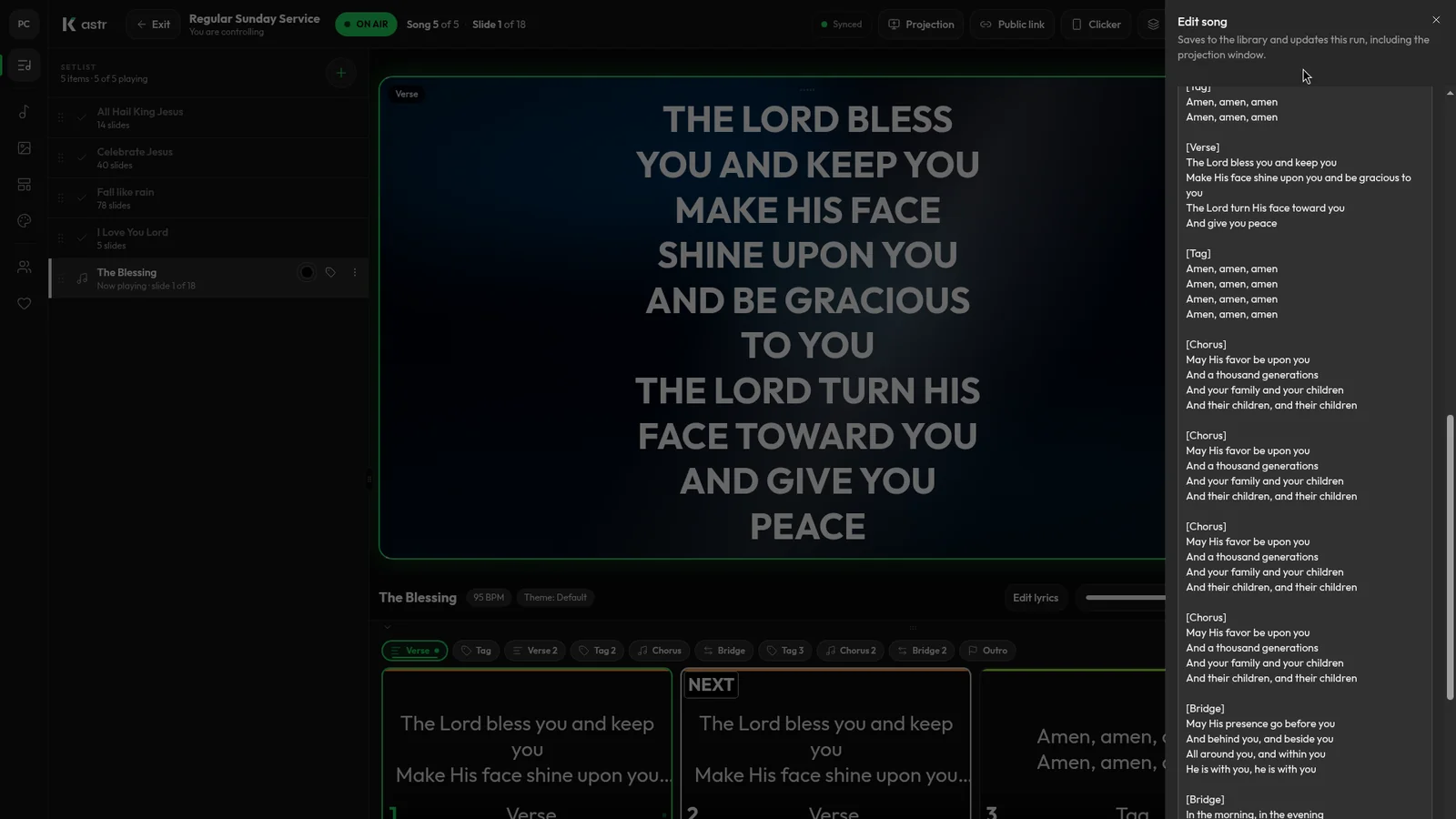
A typo on screen is distracting, especially in a lyric people are singing. Kastr lets you fix a typo on a single slide during the show. The screens update, and you don't need to stop the program or reload anything.
Clear the screen when the plan changes
Sometimes the right move is no lyrics at all. The worship leader starts praying over the song, or the music drops to a spontaneous moment that isn't in any slide.
Press B to black out the screens. While blackout is on, Next and Previous still move through the setlist underneath, so you can get to the right place quietly. Press B again or click Restore screens when you're ready to bring the words back.
Switch the look for the whole set
If the lyrics are hard to read once the stage lights are on, you can switch the theme for the whole program while it's running. That changes the background, font and size for every song at once, without editing the songs themselves.
Share the load when things move fast
Live changes are easier with two people. One can watch the stage and advance slides while the other adds a song or fixes a typo.
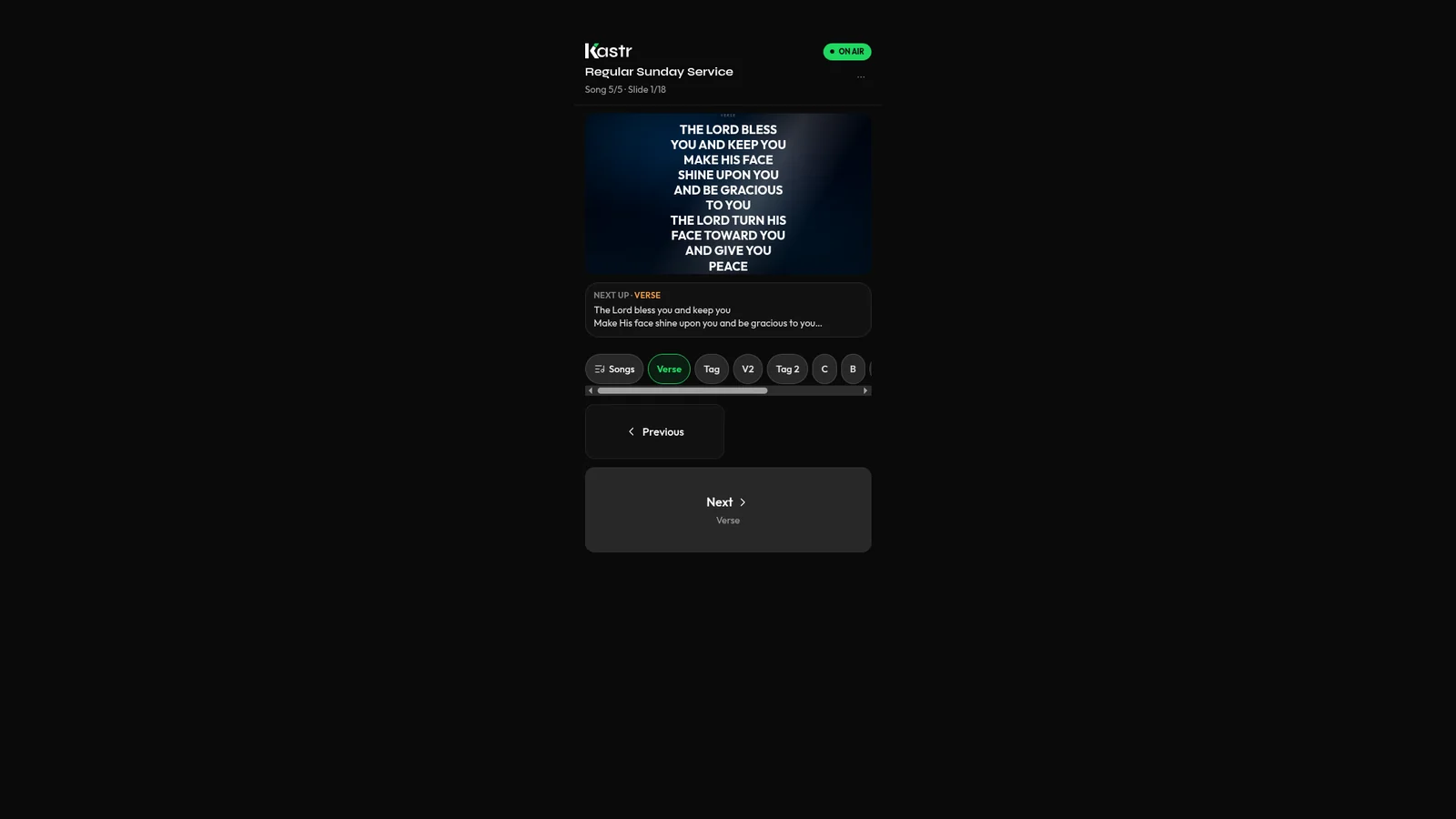
Kastr's phone clicker makes that possible without a second computer. Press Clicker in the top bar and a teammate scans the QR code to get next and previous buttons on their phone. If you need full control back, press Clickers in the bottom bar to pause every phone clicker.
If the deck closes
Computers restart and browser tabs get closed. If it happens, reopen the deck and Kastr resumes where you left off, so you're not starting the program from the top.
Prepare so there's less to change
Most mid-service scrambles come from things you could have caught earlier. A few habits help:
Label every section in every song.
Ask the worship leader whether any songs might be added, and have them in the library even if they're not in the program.
Run the program once before the service, reading every slide for typos.
Keep the setlist short enough that you can see it all on screen.
Free, with nothing held back
Every live control in Kastr is free on the web and on Windows. There are no paid plans and no feature limits.
Be ready for the next change
You can't plan for every request, but you can make each one quick to handle.
Download Kastr for Windows or open Kastr in your browser and run your next service with room to change course.
Need offline projection on Sunday?
Kastr for Windows runs fully offline on the booth computer. Download the installer once when you have a connection, then run your program without signing in.
More from the blog
How to format song lyrics into slides that are easy to read
Readable lyric slides come down to how you format the text before it hits the screen. Here's how to prepare lyrics so Kastr builds clean slides every time.
Show live lyrics on the projector, lobby TVs and phones at once
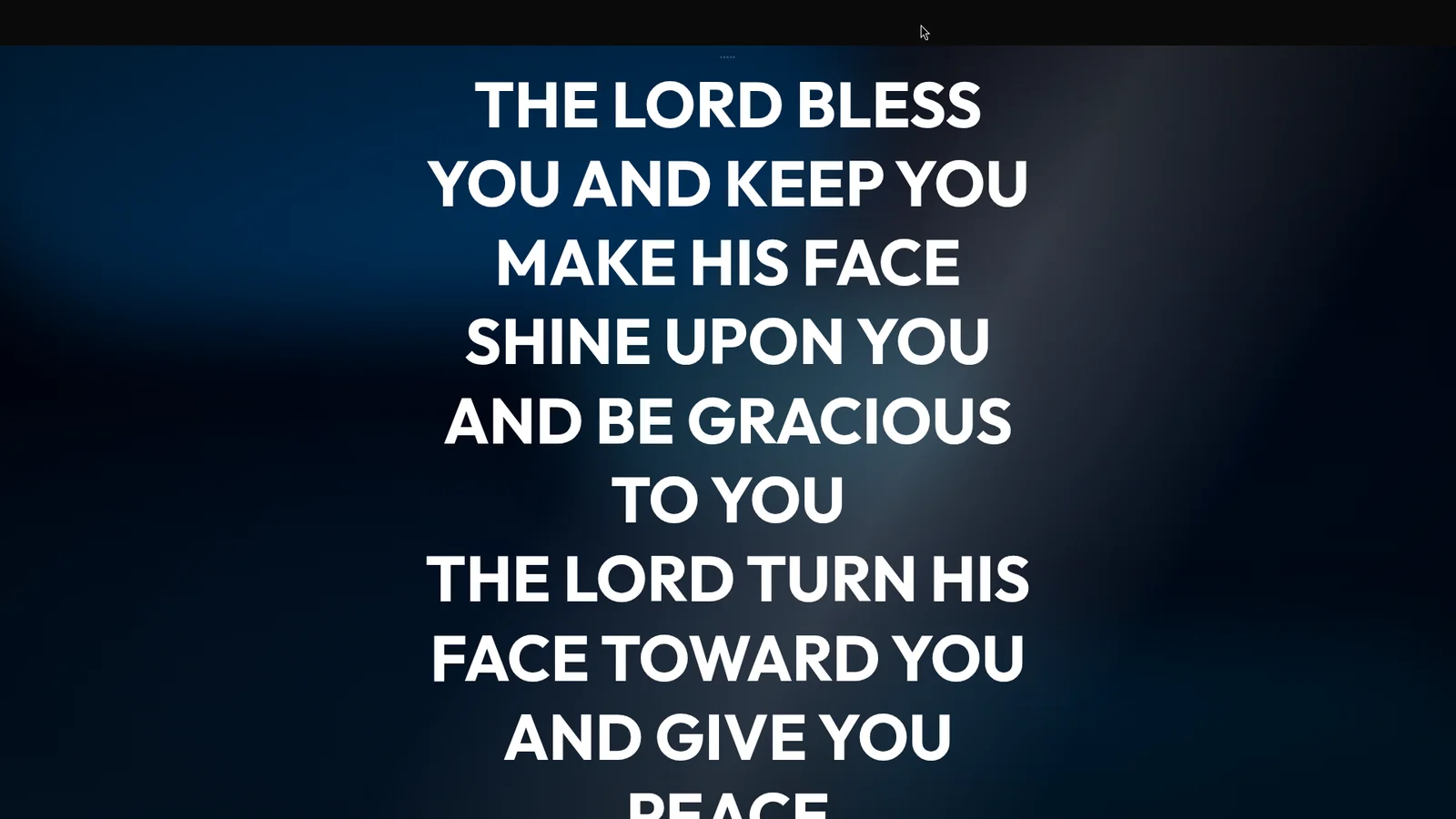
The main projector isn't the only screen that needs lyrics. Here's how to put the live slide on lobby TVs, phones and stream computers from one deck.
Use your phone as a slide clicker for church lyrics
The person who knows when the chorus comes back isn't always the one at the computer. Kastr's phone clicker lets a teammate advance slides from anywhere in the room.