Free Live Lyrics Projection
Offline lyrics projection: running worship slides with no internet
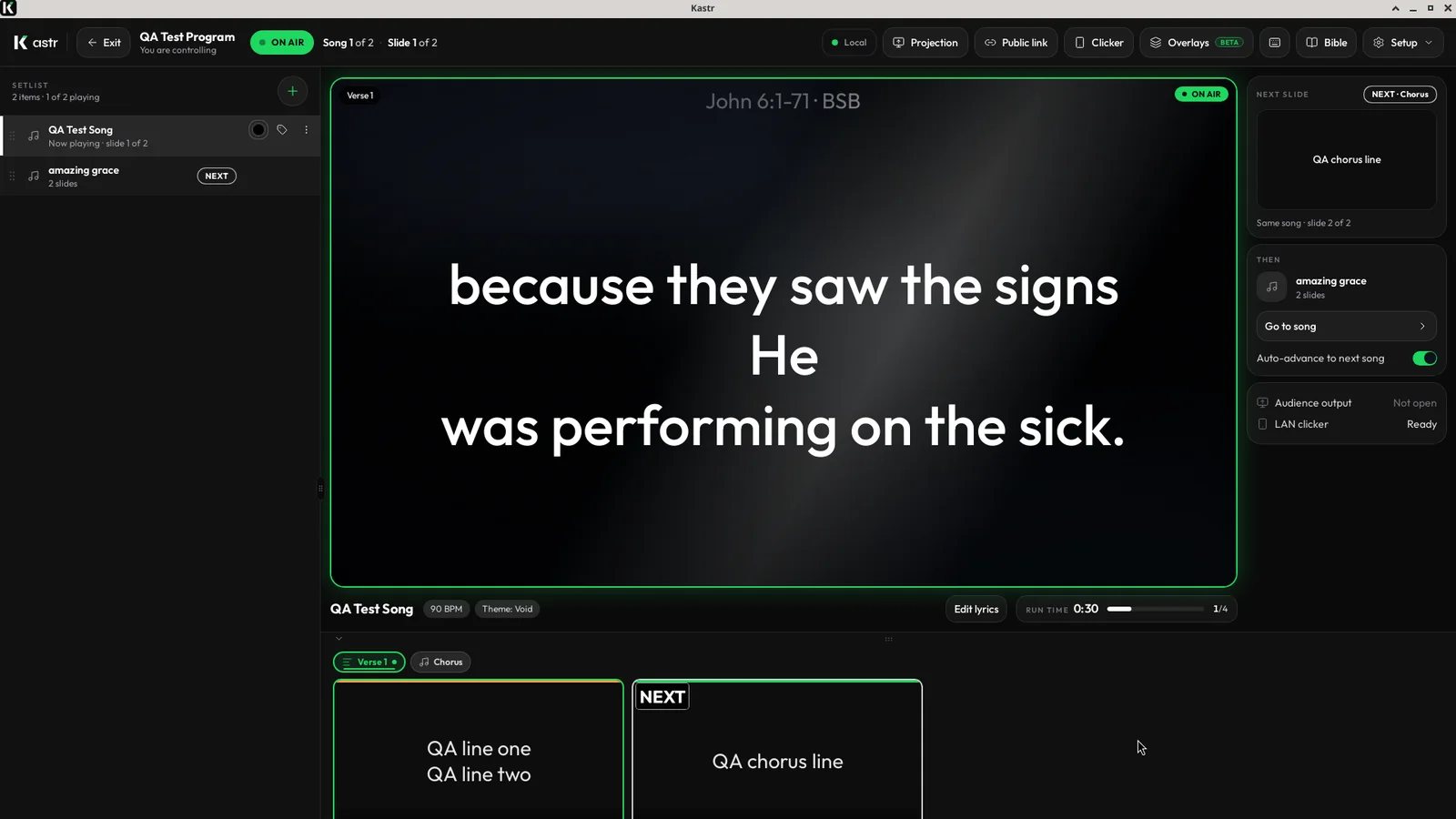
Plenty of churches meet in places where the internet can't be trusted. A provincial chapel with one weak signal, a rented hall with Wi-Fi that drops when the room fills up, an outreach service under a tent. In those rooms, any software that needs a connection during the service is a risk.
Kastr for Windows is built for that. Once it's installed, it runs with no internet at all.
Why internet matters for projection software
Browser-based tools are convenient. There's nothing to install, and the whole team can reach the same library from any computer. But a browser tool needs a connection to load your workspace. If the connection goes during the service, you can be left without your songs.
Web Kastr has the same limit. That's why there's also a desktop app.
What Kastr for Windows does offline
Kastr for Windows is an installer for 64-bit Windows. After you install it on the booth computer, it runs with no internet connection. You don't need an account to use it.
The desktop app has the same tools as web Kastr. You get the projection window, a separate window for the projector or LED wall that keeps your controls off the screen. Bible mode works from the same deck as your songs. You can play background audio under your slides, and a teammate can still use the phone clicker. On Kastr for Windows, the phone clicker and the public screen link work with no internet, so phones and lobby TVs on the same local network can follow the live slide while the booth computer stays offline from the wider web. Every one of those features is free.
Optional sign-in for syncing
Some churches want both: web Kastr for planning during the week, and the desktop app for Sunday. Sign-in is how you connect the two.
If you sign in to Kastr for Windows with your Kastr account, your songs, themes and programs sync from web Kastr to that computer. The worship leader can build the program at home in a browser, and it's on the booth computer when the volunteer gets there.
If you don't need that, skip it. The app works fully without an account.
Preparing an offline booth
A few steps will make sure Sunday goes smoothly when you can't count on the network.
Install Kastr for Windows on the booth computer ahead of time, not on Sunday morning. You need a connection to download the installer.
If you use sync, open the app while you still have a connection and let your songs, themes and programs come across. Then you have everything locally before the service.
Do one full rehearsal with the Wi-Fi turned off. Run the whole program, open the projection window, look up the scripture readings and play any videos. That's the best way to confirm your setup works in the room as it really is.
Keep the media you need on the booth computer. If a video lives only on someone's phone, it won't help you at the start of the service.
What still needs a connection
It's worth being clear about which features rely on the network, so nothing surprises you.
Web Kastr in the browser needs a connection to load your workspace. Optional sign-in sync and online lyrics search also need the network when you use them.
The projector itself is connected by cable, so it doesn't depend on the internet.
Keep the keyboard plan simple
In a room with no network, the keyboard is your safest controller. The arrow keys move through slides, B blacks out the screens and B again restores them, and you can click any section in the setlist to jump to it. Make sure whoever runs the desk knows those keys before the service, and keep a printed copy of the program nearby in case someone needs to check the running order.
Web or desktop: choosing for your room
The two versions are the same Kastr, so the choice is about your booth.
Choose web Kastr when the booth has a steady connection, or when the computer changes from week to week. There's nothing to install, and your library lives in your Kastr account.
Choose Kastr for Windows when the connection is unreliable, or when Kastr stays on one Windows computer. It runs fully offline, and you can sign in later if you want sync.
Some churches use both, planning on the web and running the service on the desktop app.
Free on and offline
Kastr has no paid plans on the web or on Windows. The offline desktop app isn't a premium tier. It's the same free software, packaged for rooms where the internet can't be trusted. Donations from teams who find it useful keep it running.
Get ready before your next service
If your church has ever lost the Wi-Fi in the middle of a song, set up the booth computer this week and run a rehearsal offline.
Download Kastr for Windows and run your lyrics with no internet needed.
Need offline projection on Sunday?
Kastr for Windows runs fully offline on the booth computer. Download the installer once when you have a connection, then run your program without signing in.
More from the blog
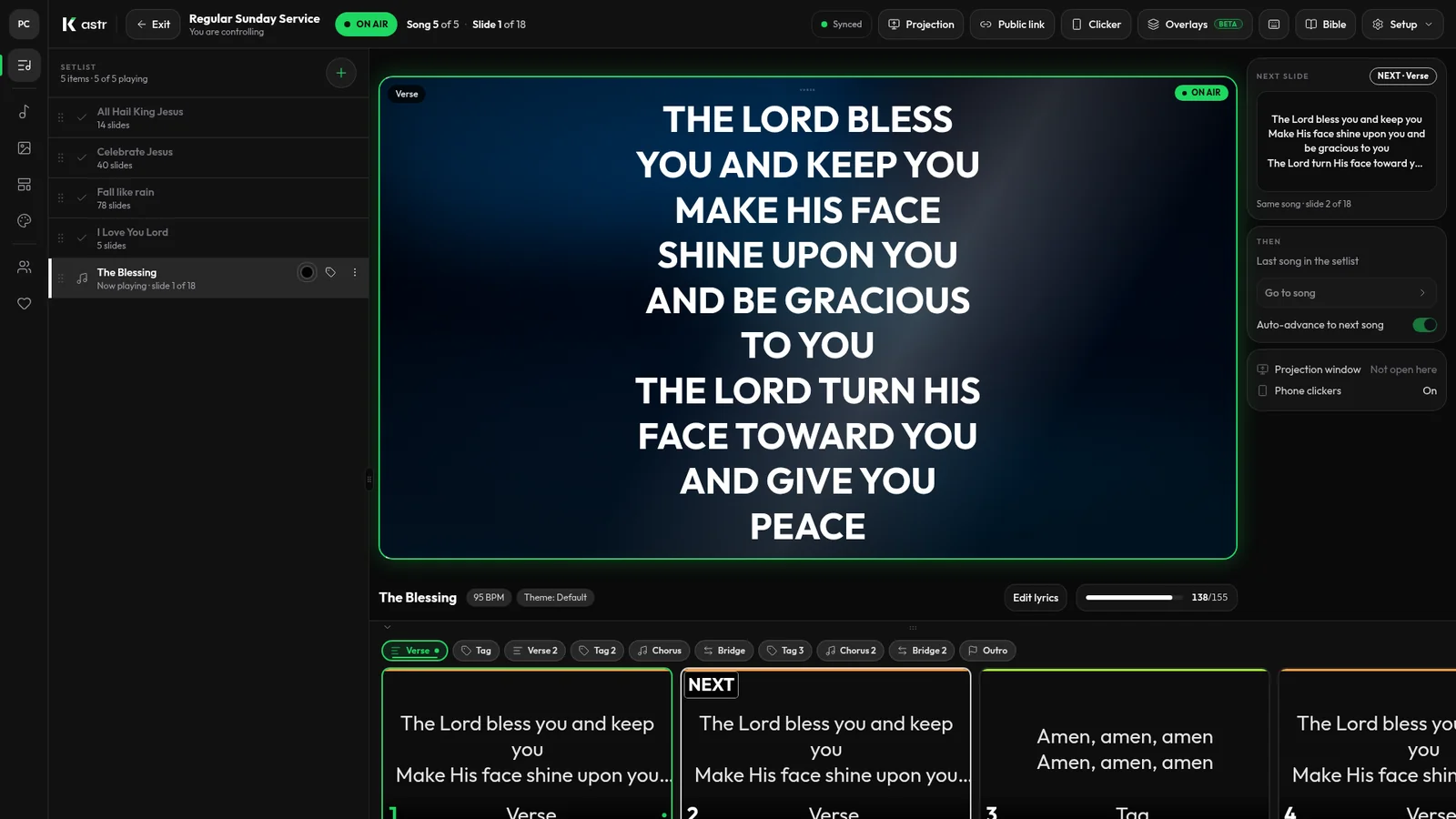
Running church lyrics with one volunteer
In a small church, one person often runs the screens, and sometimes the sound too. Here's how to set up lyrics projection so a single volunteer can handle it.
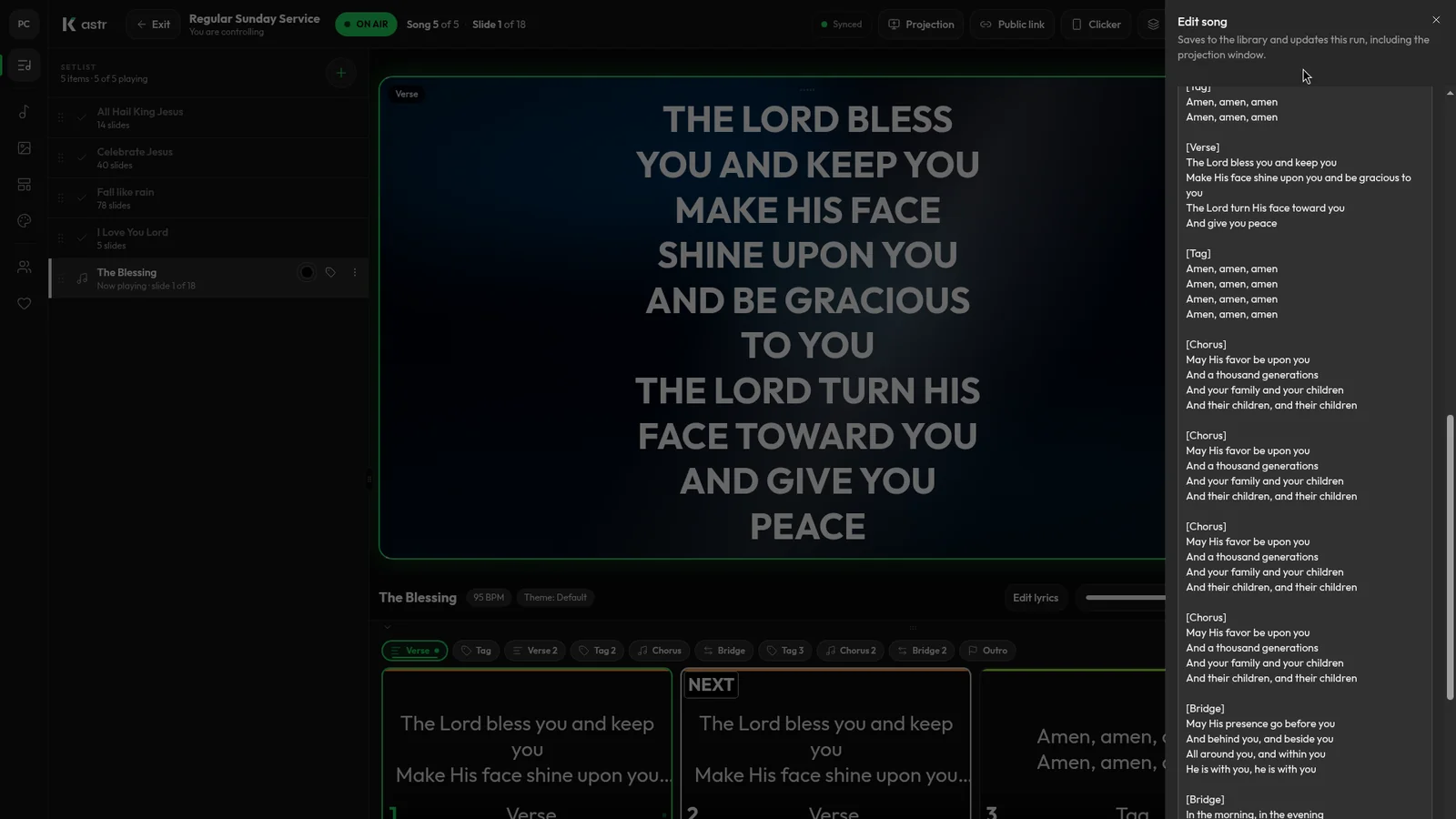
How to format song lyrics into slides that are easy to read
Readable lyric slides come down to how you format the text before it hits the screen. Here's how to prepare lyrics so Kastr builds clean slides every time.
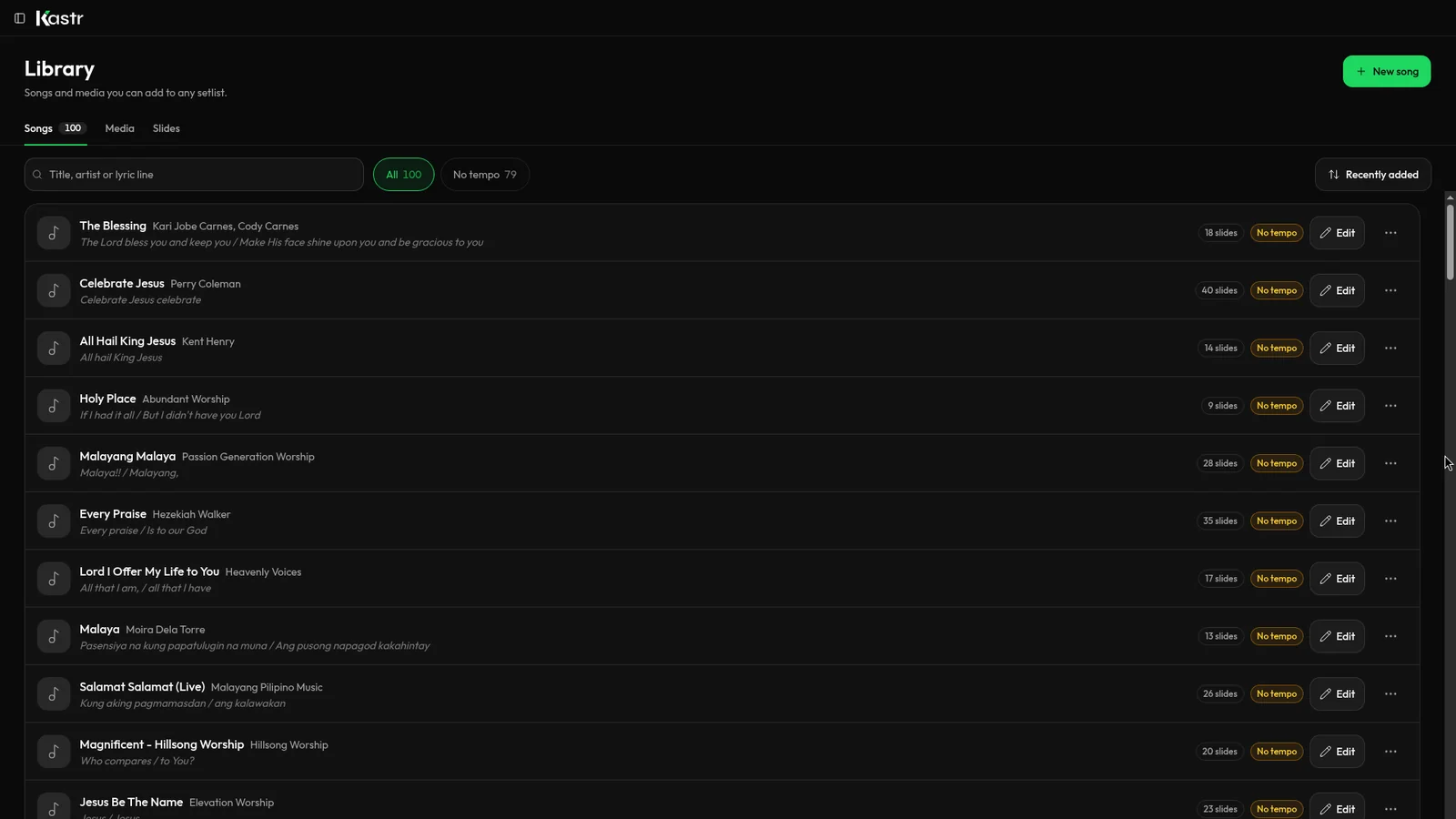
Free lyrics software for church: what free should actually include
Plenty of church lyrics tools call themselves free. Here's how to tell a real free tool from a trial, and what Kastr gives you at no cost.