Setlists
How to Build a Church Setlist Your Media Team Can Follow
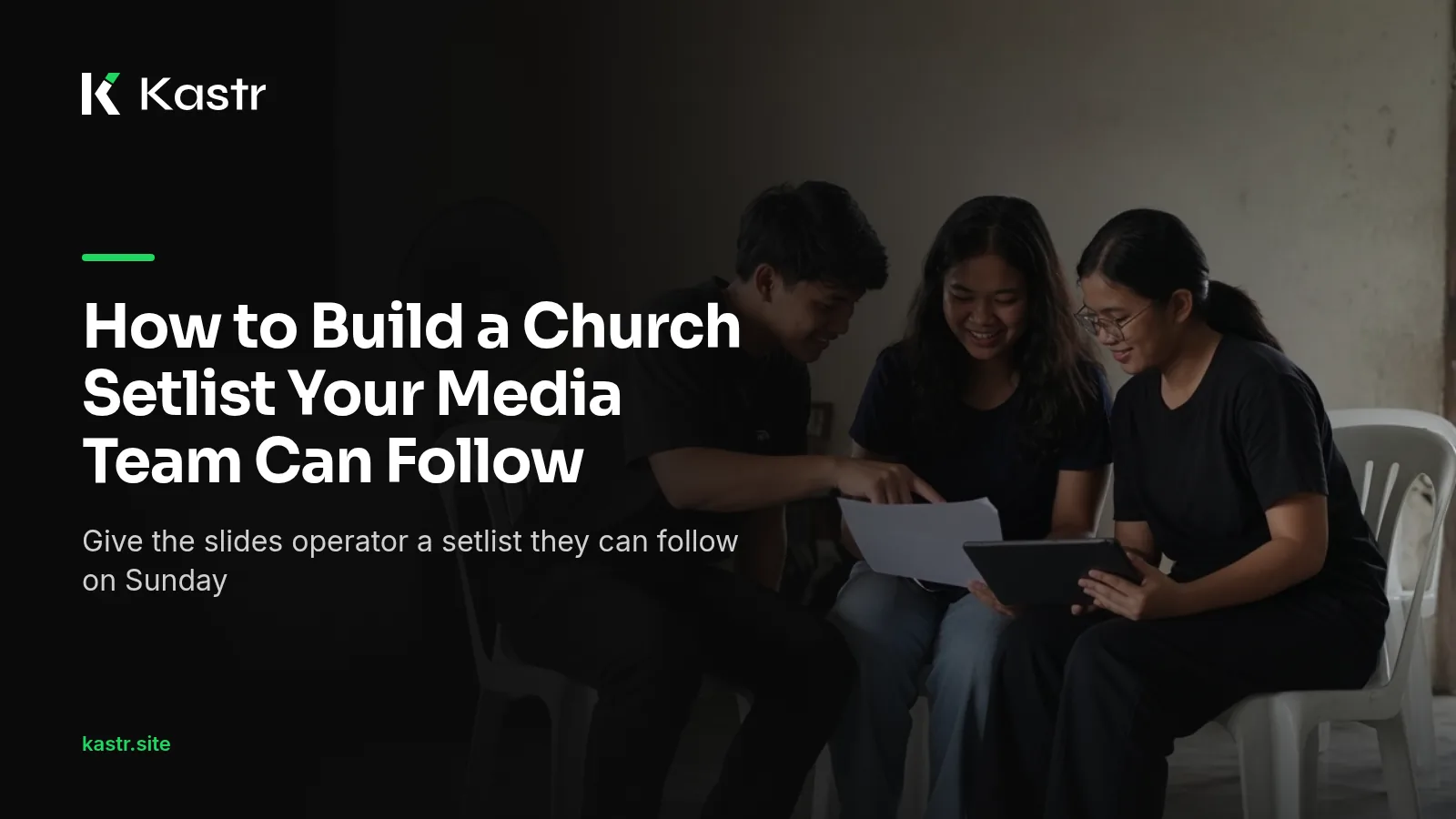
Most church setlists in the Philippines start as a Messenger group chat message from the worship leader: five song titles, maybe a key for each. That's enough for the band. The media team needs more. They need to know where the welcome slide goes, when the Bible reading switches to Tagalog or Ilocano, when the video plays, which song is the offering song and what happens if the pastor asks for the closing song early.
A setlist that the media team can follow holds all of that in one place. This post shows how to build one in Kastr.
Put the whole service in one setlist
In Kastr, a program is the setlist for one service or show. It holds songs, media and custom slides in the order you run them. Putting everything in one list means the operator never has to switch between a song app, a slideshow and a video player during the service.
To start, open Programs, click the plus button, enter a title and optionally a run date. Click Create program. The program list shows run dates as Today, Tomorrow or Coming in 3 days, so the team can see what's coming up.
Add songs from the shared library
The Library on the right of the program lists your songs and media. Click Add next to an item, or drag a song into the setlist. Because the library is shared across the workspace, a song one volunteer added last month is already there for everyone.
If a song isn't in the library yet, click New song from the program. Find or paste the lyrics and press Save and add. It goes into the library and the setlist together.
Add media where it plays
A setlist the media team can follow shows media in the order it plays. Click Add media to upload a photo or video straight into the setlist. Kastr takes JPEG, PNG, WebP and GIF images, and MP4 and WebM videos. Videos keep their sound, and the operator can play, pause, seek and mute from the deck.
If you need a welcome screen or sermon points, click Add slides to create a custom slide deck. It's added to the setlist and opens in the editor. Custom slides are part of Pro, at ₱650 a month paid with QR Ph.
Get the order right
Drag rows by the grip to reorder the set, or use each row's up and down buttons. Alt plus the arrow keys works too. On a phone, tap the row's menu button and use the action sheet.
Take a minute to walk through the order with the service plan in front of you. A media item in the wrong place is the most common reason a screen shows the wrong thing at the wrong time.
Use tags so the team reads the plan fast
Colored tags are the feature that turns a song list into something the media team can follow. Use the row menu to add a tag like Opener or Offering. The person at the desk sees at a glance which entry belongs to which part of the service.
Tags appear in a legend above the list. Click a tag to hide or show every row with it, and more than one tag can stay on at once. All shows everything again. If you need to label several entries together, press Select above the list, tick the rows and use Tag or Remove tags.
Some teams use a tag for songs that might be cut if the service runs long, or for the Tagalog songs so the operator knows the language is about to change. Others use one for entries that need a cue from the pastor. Pick a small set of tags and use them the same way every week.
Reuse last week's setlist
Many Filipino churches repeat much of the same structure every week, and the same goes for the Sunday prayer meeting and youth fellowship. The welcome slide, the announcements video and the closing song often stay. To save time, open the menu on a program in the list and choose Duplicate. Then change only what's different.
On web Kastr, the Free plan covers 3 programs and 25 songs, so duplicating and replacing older programs keeps you within the plan. Pro removes those limits.
Check the setlist before the service
Before the service starts, open the program and click Run service. Step through the setlist once from the operator deck. Make sure every song has its sections labeled, every video plays and every slide is where it should be.
If something changes during the service, the setlist can change with it. You can add a song, video or slide without stopping, fix a typo on a single slide or reorder the set while it plays.
Share the plan with the team
Everyone in the workspace sees the same programs, so the ate who plans on Saturday and the kuya who runs the deck on Sunday read the same list. Invite your volunteers from People in the sidebar with a link or a short code. When the setlist is ready, the operator, the stage team and anyone checking from home are all reading the same plan.
Build this week's setlist
Kastr for Windows is free, including the phone clicker, overlays, Bible verses and background audio. Custom slides and cloud sync are part of Pro.
Download Kastr and build a setlist your whole media team can follow.
Need offline projection on Sunday?
Kastr for Windows runs fully offline on the booth computer. Download the installer once when you have a connection, then run your program without signing in.
More from the blog
How Long Should a Worship Set Be? Planning by Tempo
Most worship leaders plan a set by feel, then find out on Sunday that it ran long. Here's how to think about set length and use song tempo to estimate it.
Preparing Your Media Team for a Live Worship Night
A worship night or youth fellowship runs longer and looser than a Sunday service. Here's how a church media team can prepare the screens, the program and the people before the doors open.
Keep One Look Across Your Worship Set on Screen
When every song in the set uses a different font and background, the screens start to compete with the worship. Here's how to give a whole set one consistent look.